# Hello & Welcome!

Welcome to the comprehensive getting started guide and instruction set for the CompiledSanity Personal Finance Template.

<figure><picture><source srcset="/files/WNKmqYtbuIru1C8OgFZK" media="(prefers-color-scheme: dark)"><img src="/files/pJ1f6fXr99VRJ4HFhCmh" alt="" width="375"></picture><figcaption></figcaption></figure>

![](/files/-MTFYfDOnn5nTSXZlf9S)

## 🌐 **To get started, please see the links below:**

• *Official Website -* [cspersonalfinance.io](https://cspersonalfinance.io/)\
• [*Frequently Asked Questions (FAQs)*](/getting-started/faqs)\
• *Official Subreddit* - [reddit.com/r/CSPersonalFinance](https://www.reddit.com/r/CSPersonalFinance/)\
• *Support the next update on Patreon* - [patreon.com/compiledsanity](https://www.patreon.com/compiledsanity)

## ℹ️ Important Notes

• Please note instructions and screenshots are for v2 and above and therefore may mention some features that aren't available in v1. [v2 is available on the CS Personal Finance website.](https://cspersonalfinance.io)\
• If you notice that some aspect of these instructions are inaccurate or need updating, [please let me know via the subreddit.](https://www.reddit.com/r/CSPersonalFinance/submit?title=Incorrect%20portion%20in%20Getting%20Started%20Guide\&text=Hello%20all,%0A%0AI%27ve%20found%20something%20incorrect%20in%20the%20Sheet%20instructions.%20The%20issue%20is%20as%20follows:%0A%0AEnter%20link%20and%20info%20here%20:\)\&self=true)\
• Please see the disclaimer below before using any information from this knowledge base.

## 📈 **Free v1 Template Links:**

• [🇦🇺 Australia Sheet](https://docs.google.com/spreadsheets/d/1tRJzUsKBNE_JoSTiMLT0-V5zk3cwGW3lpnpboot0IGI/)\
• [🇺🇸 United States Sheet](https://docs.google.com/spreadsheets/d/1pPK8t8Oe6F53OMw1EG8Hq1tX4F5SnULdf3Cr8TlUCs4/)\
• [🇬🇧 United Kingdom Sheet](https://docs.google.com/spreadsheets/d/1v9ENzdoSIVlfAA2SFVFz6KKVAAu5Knv8klde7bN2Qqo/)\
• [🇪🇺 EU Sheet](https://docs.google.com/spreadsheets/d/15v1a96culFW0r5HfyRaAu2gmdK9s-9kOe9ARSUWBuAY/)

## 📝 Terms

For a full list of Terms please see this link - <https://cspersonalfinance.io/terms>


# Initial Steps

How to get started with the CompiledSanity Finance Sheet

## Getting Started

#### **Get started with the sheet in 5 easy steps. These are outlined below:**

<figure><img src="/files/fyZqyW8zwxTjwPU6uz0r" alt=""><figcaption></figcaption></figure>

{% hint style="info" %}
Please note that all screenshots and steps in this guide are for [v2 and above.](https://cspersonalfinance.io/#download)
{% endhint %}

{% stepper %}
{% step %}
**Click File > Make a Copy and save the Sheet where you'd like in your Google Drive.**
{% endstep %}

{% step %}
**Click the Initialize button to initialize the Sheet.**

This step gives the sheet permissions to run the behind the scene processes that will update your numbers when you record your month.

*You may receive a popup saying this app isn't verified.*&#x20;

*This is because the code running the sheet is bundled with the sheet. This is so the code can reviewed for full transparency & ownership, and can't be changed by anyone but you.*

*If you would like to view the code driving the Sheet, feel free to audit this code yourself via Tools -> Script Editor. This code has been independently verified by many members of the community.* [*Please also see the Privacy FAQ here.*](https://compiledsanity.github.io/#faq)

*To proceed click Advanced in the bottom left, and 'Go to CS Personal Savings Sheet v2'.*
{% endstep %}

{% step %}
**Read the Disclaimer and click "*****I accept*****" if you agree to these conditions.**
{% endstep %}

{% step %}
**Select the Sheet features that are relevant to you to personalize the sheet to your liking.**&#x20;
{% endstep %}

{% step %}
Working from left to right through the various tabs (with the help of the other pages in this guide), go through all the different tabs and update the cells that are yellow to input your information. Everything else is automated!

<img src="/files/-MSurA3jPExHiJRKVZ6W" alt="" data-size="original">

*Only update cells that are coloured yellow like the above.*
{% endstep %}
{% endstepper %}

And that's it! That's all you need to do to get the Sheet setup. Please next read the instructions on how to record each month and store your history.


# Updates & Migrations

Upgrading from an older Sheet version is extremely simple with the built-in migration tool.

{% hint style="success" %}
**If you would like the latest version of the sheet (after purchase)** [**please click here**](https://cspersonalfinance.io/latest)**.**
{% endhint %}

{% hint style="info" %}
To use the migration tool, your new **destination** sheet must be the **Full Version** of the sheet. The slimmed sheet does not include the migration tool and can't be migrated to.

Supported upgrade paths:

* Slimmed Sheet -> Full Sheet (includes migration tool)
* Full Sheet -> Full Sheet (includes migration tool)
  {% endhint %}

You can upgrade to a new version of the Sheet using the built-in migration tool. Updating to a new version of the sheet takes just 30 seconds and migrates all your information across on your behalf. This tool is in the **Migrate Data** tab.

To complete a migration, please follow these steps:

{% stepper %}
{% step %}
**Open the link to the new Sheet, and save a copy of the latest Sheet in your Google Drive.**
{% endstep %}

{% step %}
**In your new Sheet, complete all the required steps in the&#x20;*****First Time Setup*****&#x20;Tab.**
{% endstep %}

{% step %}
**In the&#x20;*****Migrate Data*****&#x20;tab of your new Sheet*****, s*****pecify the version of your old Sheet.**

<img src="/files/-MSuwK8zTmR3cLMgK5EX" alt="" data-size="original">

*If you are unsure of the version of your old sheet, you can find it in the **Net Worth** tab in cell **C46***
{% endstep %}

{% step %}
**In your new Sheet, enter in the url of your old Sheet that you are upgrading from.**

<img src="/files/-MSuw_M3oI0NN4UxqKLS" alt="" data-size="original">
{% endstep %}

{% step %}
**Select the tabs that you would like to migrate over from your source Sheet.**

<img src="/files/-MSuwiZWgygM2xV3ZUpG" alt="" data-size="original">
{% endstep %}

{% step %}
**Click the Migrate Data button. This process may 2-3 minute to finish. That's it!**
{% endstep %}
{% endstepper %}

{% hint style="warning" %}
**NOTE:** If you have extensively modified a sheet tab and modified the locations of some cells, the migration may not complete successfully or data may be copied incorrectly. If this happens please exclude that tab from the migration.
{% endhint %}

{% hint style="info" %}
If you find the migration tool does not successfully complete the first time around - please feel free to run it again until it completes. This may be necessary if you have a large amount of data recorded.\
\
There are no consequences to running the migration tool several times until you see the success message.
{% endhint %}


# Sheet Options Tab

The Sheet Options tab is a central hub of all settings and inputs into the sheet. These inputs then flow onwards through to the rest of the tabs where needed.

![](/files/4IneLrWyiSqoJknwvONv)

When setting up the sheet for the first time, we recommend working through all settings in this tab from top to bottom.

<table data-full-width="true"><thead><tr><th width="277">Setting Title</th><th>Explanation</th></tr></thead><tbody><tr><td>Personal Gmail</td><td>Your email address for receiving monthly summary reports. This should be automatically filled in.</td></tr><tr><td>Day of Month Paid</td><td>Enter the day of the month you receive your salary. If you're not paid monthly, set this to 1.</td></tr><tr><td>Use Budget Tab?</td><td>Select whether you want to use the Budget tab features. When set to "Yes," the sheet will use your budget entries to create expenditure estimates. For maximum accuracy, fill out the Budget tab completely.</td></tr><tr><td>Employment Salary</td><td>Enter your gross employment salary (before tax deductions).<br><br>For irregular income, you can either:<br>a) Enter an estimated annual figure<br>b) Set this to $0 and record all income in the Side Income tab, which will automatically calculate this figure for you.<br><br>Note: If you're paid in a currency different from the sheet's default, disregard the incorrect currency symbol and specify your correct salary currency in the "Employment Salary Currency" field below.</td></tr><tr><td>House Price Target</td><td>If saving for a house, enter your total savings target. If saving jointly with someone not included in this sheet (e.g., partner), enter only your expected contribution amount.</td></tr><tr><td>General Cash Savings Target</td><td>Set a general cash savings goal for yourself (not tied to a specific purpose).</td></tr><tr><td>Salary Frequency</td><td>Select how often you receive your salary (weekly, fortnightly, monthly).</td></tr><tr><td>Net Regular Income</td><td>Enter your take-home pay amount (after tax, retirement contributions, student loan payments, etc.) that is actually deposited into your bank account.</td></tr><tr><td>Job Start Date</td><td>Your employment start date, used for savings rate calculations (though largely unused since v2.8).</td></tr><tr><td>Include Side Income in Budget Income</td><td>For irregular income reported in the Side Income tab, this setting will include a 12-month rolling average in your budget calculations. Especially useful for contractors or those with inconsistent income.</td></tr><tr><td>Bank Interest Rate</td><td>Enter the interest rate your bank pays on your savings. If you have multiple accounts, use the rate from the account where you keep most of your savings (not your transaction account).</td></tr><tr><td>Brokerage (buy only)</td><td>Enter how much you pay in brokerage fees when purchasing ETFs, stocks, or managed funds.</td></tr><tr><td>Allocation aggressiveness</td><td><p>Determines how aggressively the sheet recommends rebalancing your portfolio toward your target asset allocations.<br><br>Example: If your ETF allocation is 10% below your target, a "Light" setting might recommend allocating 30% of your next paycheck to ETFs, while an "Aggressive" setting might recommend up to 100%.</p><p><strong>Important: These recommendations only apply after you've met your emergency fund threshold</strong>.</p><p>NOTE: Investing involves risk - please make informed decisions (see disclaimer).</p></td></tr><tr><td>Asset Allocations - ETFs</td><td><p>The percentage of your non-property assets you want invested in ETFs.<br>NOTE: Investing involves risk - please make informed decisions (see disclaimer).</p><p>This setting affects the sheet's recommendations as explained in the "Allocation aggressiveness" entry.</p></td></tr><tr><td>Asset Allocations - Stocks</td><td><p>The percentage of your non-property assets you want invested in individual stocks.<br>NOTE: Investing involves risk - please make informed decisions (see disclaimer).<br></p><p>This setting affects the sheet's recommendations as explained in the "Allocation aggressiveness" entry.</p></td></tr><tr><td>Asset Allocations - Crypto</td><td><p>The percentage of your non-property assets you want invested in cryptocurrency.<br>NOTE: Investing involves risk - please make informed decisions (see disclaimer).<br></p><p>This setting affects the sheet's recommendations as explained in the "Allocation aggressiveness" entry.</p></td></tr><tr><td>Asset Allocations - Cash Drawings</td><td><p>The percentage of your non-property assets you want to maintain as cash.<br></p><p>This setting affects the sheet's recommendations as explained in the "Allocation aggressiveness" entry.</p></td></tr><tr><td>House Savings Target / Year</td><td>If saving for a house, enter your annual savings target for this specific goal. Set to $0 if not saving for a house.</td></tr><tr><td>Base Currency Choice</td><td><p>Enter the three-letter code for your preferred base currency (e.g., USD, EUR, GBP).<br></p><p><strong>NOTE:</strong> This setting won't change currency symbols throughout the sheet. It only affects how international assets in different currencies are converted to your base currency for reporting purposes.</p></td></tr><tr><td>Asset Allocations - Managed Funds</td><td>The percentage of your non-property assets you want invested in managed funds.<br>NOTE: Investing involves risk - please make informed decisions (see disclaimer).<br><br>This setting affects the sheet's recommendations as explained in the "Allocation aggressiveness" entry.</td></tr><tr><td>EOY Cash Goal</td><td>Set an end-of-year cash target. The sheet will track your progress and project if you'll meet this goal based on your current savings rate.</td></tr><tr><td>Market Investment Return</td><td>Your assumed long-term average annual market return percentage, including inflation.</td></tr><tr><td>Tax Bracket</td><td><p>Your current income tax bracket percentage.</p><p>For couples tracking together, use the <a href="https://cspersonalfinance.io/tools/trackingwithpartners">CompiledSanity Partner Tax Calculator</a> to work out an averaged tax rate.</p></td></tr><tr><td>House Deposit - % Target</td><td>If saving for a house, enter what percentage of the total house price you need for your deposit (e.g., 10% or 20%).</td></tr><tr><td>House Deposit - Investment Contribution %</td><td>If saving for a house, enter what percentage of your existing investments you plan to use toward your house deposit.</td></tr><tr><td>CoinMarketCap API</td><td>For tracking cryptocurrency prices, enter your CoinMarketCap API key. Sign up at <a href="https://pro.coinmarketcap.com/signup/">https://pro.coinmarketcap.com/signup/</a></td></tr><tr><td>Emergency Fund Duration</td><td>Enter how many months of expenses you want your emergency fund to cover. The sheet will calculate your target fund amount based on your average monthly spending.</td></tr><tr><td>Minor Version Update Notification</td><td><p>Choose whether to receive notifications for minor version updates (e.g., 2.10.1 → 2.10.2). Set to "Yes" to get pop-up notifications and alerts in the Net Worth tab.</p><p>Major version releases will always trigger notifications regardless of this setting.</p></td></tr><tr><td>Automatic Investment System</td><td>Set to "Yes" if you want the sheet to automatically optimize your budget for investing. Set to "No" if you prefer to manually manage your investment allocations.</td></tr><tr><td>Capital Gains - Calculation Style</td><td>Select your preferred method for calculating capital gains.</td></tr><tr><td>Capital Gains - Short Term Tax Rate</td><td>Enter the tax rate percentage you pay on capital gains from assets held less than 1 year.</td></tr><tr><td>Capital Gains - Long Term Tax Rate</td><td>Enter the tax rate percentage you pay on capital gains from assets held more than 1 year. Note: This is your actual tax rate, not the discount rate.</td></tr><tr><td>Capital Gains - Show in Liabilities Tab</td><td>Choose whether to display current financial year capital gains tax obligations in the Liabilities tab. This helps ensure potential future tax burdens aren't counted in your net worth calculations.</td></tr><tr><td>Crypto Fee (%)</td><td>Enter the percentage fee your cryptocurrency exchange charges per transaction (buy/sell).</td></tr><tr><td>Employment Salary Currency</td><td>Enter the currency in which your salary is paid.</td></tr><tr><td>Crypto Pricing Source</td><td>Select your preferred source for cryptocurrency price data. Ensure you use the correct ticker codes for your chosen source (e.g., "BTC" for CoinMarketCap, "Bitcoin" for CoinGecko).<br><br>Note: CoinMarketCap currently offers the most stable and well-supported integration.</td></tr><tr><td>Include Mortgage in Savings Rate?</td><td>Set to "Yes" if you want your monthly mortgage payments included in your savings rate calculation. If set to "No," mortgage payments will be categorized as spending.</td></tr></tbody></table>

If you have questions about any field or need further help, please post in the [CS Personal Finance Reddit forum](https://www.reddit.com/r/CSPersonalFinance/).


# Recording a Month

Recording a month locks in your asset values at a certain moment in time, enabling you to gain a sense of progress month to month. This will then be reflected in graphs and tables throughout the sheet

### How to record a month

{% stepper %}
{% step %}
**Update any tabs that have changed since last month to bring all your balances up to date.**&#x20;

For most, this is usually the Cash and Retirement tabs, or any investments that you have not already entered. This gets quite simple once you have run the sheet a few times.&#x20;
{% endstep %}

{% step %}
**Go to the&#x20;*****Net Worth*****&#x20;tab** **and press the&#x20;*****Click to record month & update Sheet*****&#x20;button**

<img src="/files/8HjqJClWlpxfm8T7hczt" alt="" data-size="original">
{% endstep %}

{% step %}
**Select whether you are recording for the current month, or a past month.**

<img src="/files/QrReqsUwVTtbuMv6Q4k5" alt="" data-size="original">

* If you select yes, the **current** month will be updated (preferred).
* If you select no, you will be directed to Step 4 to select the month to update (lookback recording).
  {% endstep %}

{% step %}
&#x20;**\[Lookback Recording]** If you pressed No in the screenshot above, and want to update a past month, select the month you want to update in the dropdown. Please note this is not the recommended way to do ongoing updates, and is only meant to be used for missed months. Recording as the 'current month' is the recommended method.

<img src="/files/kWIzHKNYskdVE333CUZW" alt="" data-size="original">

* **Please note** - Lookback recording is only offered if you have previously recorded at least one month. This is so the sheet is properly initialised at least once.
* If you are recording for a month in the past, the numbers saved will be the numbers currently shown in the sheet. They will not be automatically looked up historical numbers.
* After clicking select month the "Running Script" info box may disappear, but processes are still continuing in the background.
* *If you do not have any months populated in the dropdown, this may be because you have multiple Google Accounts logged in.* There is a current bug in Google Sheets where this dropdown will only populate when one account is signed in.
  {% endstep %}
  {% endstepper %}

***

That's it! The sheet may do some number crunching from anywhere between 20 seconds to a minute. After the process has been completed successfully you should receive a summary pop up and email.

{% hint style="info" %}
When should I record for the month? [See the FAQ.](/getting-started/faqs#recording-for-the-month)
{% endhint %}


# FAQs

A full list of FAQs related to the sheet. Have one that isn't answered here? Ask in the subreddit!

## Using the Sheet <a href="#using-the-sheet" id="using-the-sheet"></a>

### How do I enter my own historical data into a new Sheet? <a href="#entering-historical-data" id="entering-historical-data"></a>

To enter your own historical data into the Sheet:

1. Go to the History tab
2. Start in Cell A3 and work downward, entering dates (e.g., 1/6/2020, 1/7/2020) for your previous data. Don't worry about existing months—they will automatically move down.
3. For each new month you've entered, fill out the values in the blue columns from left to right.

### How do I know my data is kept private? <a href="#data-privacy" id="data-privacy"></a>

The Sheet is completely self-contained. When you download and make a copy, it becomes an independent version hosted by you. The "external services permission" is needed because the Sheet fetches live Crypto, Stock, and Managed Fund prices from sources like Google Finance, Yahoo Finance, and Bloomberg.

You can review all formulas to see how this works—it's strictly a one-way fetch process. By examining the Tools -> Script Editor code, you can verify everything yourself. No personally identifying information or sensitive data like passwords/usernames are needed or requested. The only inputs are your holdings and amounts—the minimum information needed to track your net worth and performance.

There are two versions of the sheet:

* **Full version**: Contains all features but requires additional permissions
* **Slimmed version**: More private and self-contained but with some features removed

You'll receive links to both versions in your email invite.

### What is the difference between the Full and Slimmed Versions? <a href="#full-vs-slimmed-editions" id="full-vs-slimmed-editions"></a>

**Full Version Permissions:**

1. *See, edit, create, and delete all your Google Sheets spreadsheets* - To allow the Migration tool to automatically copy your data across from an older Sheet version when you upgrade to a newer version.
2. *Connect to an external service* - To allow the fetching of live Stock/Crypto/ETF prices from sources such as MorningStar, Yahoo, FT.com and CoinMarketCap where GoogleFinance does not provide a live price.
3. *Send email as you* - [To send you a record of your end of month progress](https://cspersonalfinance.io/img/SummaryEmail.jpg)
4. *Display and run third-party web content in prompts and sidebars inside Google applications* - To display the end of month summary prompt in your Google Sheet [(same content as the Email)](https://cspersonalfinance.io/img/SummaryEmail.jpg)

**Slimmed Version Permissions:**

1. *View and manage spreadsheets that this application has been installed in* - To allow the script to process your monthly numbers and then write them back to the Sheet as history in the History Tab
2. *Connect to an external service* - To allow the fetching of live Stock/Crypto/ETF prices from sources such as MorningStar, Yahoo, FT.com and CoinMarketCap where GoogleFinance does not provide a live price.
3. *Display and run third-party web content in prompts and sidebars inside Google applications* - [To display the end of month summary prompt in your Google Sheet](https://cspersonalfinance.io/img/SavingsRate_Cropped.jpg)
4. Missing features - No migration tool (if the destination sheet), monthly email updates or calender invites/prompts.

### What region of the Sheet should I pick? <a href="#choosing-sheet-region" id="choosing-sheet-region"></a>

Choose the Sheet region that matches where you live due to retirement/tax differences, or alternatively, choose based on the currency you're paid in if you earn internationally.

### When do I press record for the month? <a href="#recording-for-the-month" id="recording-for-the-month"></a>

You should record a month while you're *inside* that month (e.g., January should be recorded between Jan 1-31).

When to record within the month is flexible — you can do it at the beginning or end, depending on when you want your financial snapshot to represent (start of January or end of January).

If you accidentally miss recording within the month, see [entering a missed month](#entering-missed-month).

### I accidentally clicked the button to end the month too early and hadn't updated all my assets, what do I do? <a href="#accidentally-recorded-month" id="accidentally-recorded-month"></a>

To undo an accidental month recording:

1. Click File -> Version History -> See Version History
2. In the right sidebar, click on the dated version of the Sheet from *before* you clicked to end the month
3. Click the green 'Restore this version' button at the top of the screen
4. Finish entering your data and run the Sheet again

### A new Sheet update is released, how do I upgrade to a new Sheet? <a href="#upgrading-to-new-sheet" id="upgrading-to-new-sheet"></a>

* [Click here for instructions on how to upgrade your Sheet](https://guide.cspersonalfinance.io/getting-started/upgrading-from-an-older-version)
* [Click here to request the latest invite](https://cspersonalfinance.io/latest) if needed

### How do I migrate data between sheets? <a href="#migrating-to-new-sheet" id="migrating-to-new-sheet"></a>

As of v2.9, the new Automated Migration Tool handles all Sheet migrations and updates. [See instructions on how to upgrade/migrate your sheet here](https://guide.cspersonalfinance.io/getting-started/upgrading-from-an-older-version).

### How do I enter in a missed month? <a href="#entering-missed-month" id="entering-missed-month"></a>

If you missed recording a month, you have two options:

1. **Use the lookback functionality** - Preferred if you're close to the missed date (within \~30 days). [See the recording-a-month guide for details](/getting-started/recording-a-month).
2. **Manually enter historical data** - For entering past months or editing a specific past month.

To manually backfill data:

1. In the History tab, enter the date you want to backfill in Column A, keeping correct order with existing months. For first-time users, simply write the missed date in Cell A3.
2. **Note:** Do not insert new rows—use the rows already in the Sheet.
3. Fill out the Asset values for the new month (blue columns only).
4. Done! The Date Column will automatically adjust, and the current month will shift down.

### Can I use the Sheet with Excel, Offline or Libre Office? <a href="#using-excel-libre-office" id="using-excel-libre-office"></a>

Unfortunately, no. The Sheet relies heavily on Google Sheets functions for live pricing, custom Google formulas, and behind-the-scenes scripts written in Google Apps Scripts. While you could download and try importing into Excel, significant elements won't work, making it impractical.

If your concern is privacy, please see [How do I know my Data is kept private?](#data-privacy)

### A new version is released but I haven't received an invite email, what do I do? <a href="#no-email-new-version" id="no-email-new-version"></a>

[Click here to request the latest invite](https://cspersonalfinance.io/latest).

Release emails can sometimes be marked as spam or placed in Gmail's Promotions tab. To prevent this, add the sender's email address (from your original invite) to your contacts.

If you still haven't received an invite, use the link above, [post in the official Subreddit](https://www.reddit.com/r/CSPersonalFinance/), or [contact me via Reddit](https://www.reddit.com/message/compose?to=CompiledSanity).

Note that only major releases are announced via email. Minor releases are published to the original link of the major release without announcements. To stay updated on minor releases, [check the live changelog here](https://cspersonalfinance.io/changelog).

### I haven't received my Sheet invite, what do I do? <a href="#missing-sheet-invite-email" id="missing-sheet-invite-email"></a>

[Please fill out the form here](https://cspersonalfinance.io/latest) to request your invite.

### How do I use the tool if I'm paid fortnightly? <a href="#paid-fortnightly" id="paid-fortnightly"></a>

First, in the SheetOptions tab, set your pay cycle to fortnightly and update your fortnightly pay amount. This helps the template understand your monthly income.

However, all calculations in the Sheet are performed on a monthly timescale to enable standardized date functions. Your tracking and statistics will be displayed in monthly intervals.

### The dates in my Sheets keep ticking over and my history isn't being recorded, why is this? <a href="#month-not-recorded" id="month-not-recorded"></a>

To record your monthly progress, you must press the Red Update Button in the Net Worth Tab at least once a month:

![Red Net Worth Update button](https://cspersonalfinance.io/img/RedNetWorthButton.png)

This allows you to enter all your up-to-date values before recording the month. If you don't press this button, the Sheet will continue advancing to the next month until you update your Net Worth.

Note:

* It's recommended to update your Net Worth on the 1st of every month
* You must always record a month while *in* that month (e.g., November can only be recorded during November)

### What are all the Sheet permissions for? <a href="#sheet-permissions" id="sheet-permissions"></a>

**Full Version Permissions:**

1. *See, edit, create, and delete all your Google Sheets spreadsheets* - To allow the Migration tool to automatically copy your data across from an older Sheet version when you upgrade to a newer version.
2. *Connect to an external service* - To allow the fetching of live Stock/Crypto/ETF prices from sources such as MorningStar, Yahoo, FT.com and CoinMarketCap where GoogleFinance does not provide a live price.
3. *Send email as you* - [To send you a record of your end of month progress](https://cspersonalfinance.io/img/SummaryEmail.jpg)
4. *Display and run third-party web content in prompts and sidebars inside Google applications* - To display the end of month summary prompt in your Google Sheet [(same content as the Email)](https://cspersonalfinance.io/img/SummaryEmail.jpg)

**Slimmed Version Permissions:**

1. *View and manage spreadsheets that this application has been installed in* - To allow the script to process your monthly numbers and then write them back to the Sheet as history in the History Tab
2. *Connect to an external service* - To allow the fetching of live Stock/Crypto/ETF prices from sources such as MorningStar, Yahoo, FT.com and CoinMarketCap where GoogleFinance does not provide a live price.
3. *Display and run third-party web content in prompts and sidebars inside Google applications* - [To display the end of month summary prompt in your Google Sheet](https://cspersonalfinance.io/img/SavingsRate_Cropped.jpg)
4. Missing features - No migration tool (if the destination sheet), monthly email updates or calender invites/prompts.

### I'm getting a popup saying 'Google hasn't verified this app' <a href="#google-hasnt-verified" id="google-hasnt-verified"></a>

This popup appears because the code running the sheet is bundled internally with the sheet. This approach ensures transparency and lets you review the code yourself.

You can audit the code via Tools -> Script Editor. Many community members have independently verified this code. See also the [Data Privacy FAQ](#data-privacy).

To proceed:

1. Click "Advanced" in the bottom left corner
2. Click "Go to CS Personal Savings Sheet v2"

<figure><img src="/files/7xlpQeaQgMouUDiG7C6N" alt="" width="375"><figcaption><p>Step 1 - Click Advanced</p></figcaption></figure>

<figure><img src="/files/kjnDSID7MIml5f2oNqy6" alt="" width="375"><figcaption><p>Step 2 - Click 'Go to CS Personal Savings Sheet v2'</p></figcaption></figure>

### Where can I see a changelog of the Sheet? <a href="#sheet-changelog" id="sheet-changelog"></a>

You can view the [Sheet changelog here](https://cspersonalfinance.io/changelog).

### Can I make the Sheet into more of an app? <a href="#sheet-into-app" id="sheet-into-app"></a>

If you're using a Chromium browser (Google Chrome, Microsoft Edge, Brave, etc.), you can package your spreadsheet as a pseudo-app:

1. Open your Spreadsheet and select the tab you want to land on (e.g., Net Worth)
2. Click the browser menu button in the top right corner (3 dots/lines)
3. For Chrome: More Tools -> Create Shortcut; for Edge: Apps -> Install this site as an app
4. Name your shortcut
5. Pin it to your taskbar or desktop

Note that you'll need to set this up again if you upgrade to a new Sheet version, as each Sheet has a unique URL.

### I've become a Patron, how do I get my Subreddit flair? <a href="#patron-flair" id="patron-flair"></a>

To get your unique r/CSPersonalFinance Patron Supporter flair, [please click here](https://forms.gle/UBehBSVcafAexNpt5). If your flair doesn't appear within 2 hours, contact me via Patreon for manual addition. Thank you for your support!

### When I migrate the Sheet I get an "Exceeded maximum execution time" error <a href="#exceeded-maximum-execution-time" id="exceeded-maximum-execution-time"></a>

This can happen when there's a large or complex amount of data to migrate.

Try setting only half of the migration options to "Yes" at a time, and migrate each half separately. If that doesn't work, reduce the number of options set to "Yes" even further and migrate them separately.

You can run the migration as many times as needed—there's no harm, as the tool will just overwrite previously migrated data each time.

### When I try and initialise I get a 'This app is blocked' error, what should I do? <a href="#app-is-blocked" id="app-is-blocked"></a>

Unfortunately this is a seemingly random error with extensive support threads across the internet for this issue. So far guidance has been this can often be when multiple Google accounts are signed in simultaneously. Other times it can be due to session scoring and whether or not Google deems a session to be high risk.

To resolve this:

1. Open an incognito window in ***Chrome.*** Often Firefox or Edge can sometimes fail browser checks.
2. Sign in with only one Google account
3. Initialize the sheet for the first time

&#x20;If this fails to work, users have reported that using a second Google account often passes successfully. You can then share your sheet with full read/write permissions back to your master account for ongoing use.

Once the sheet has been successfully initialised at least once, you won't see this message again.

### Where can I see the latest changes in the Sheet/Change log? <a href="#sheet-changes-changelog" id="sheet-changes-changelog"></a>

You can [sign up for future Beta tests here](https://cspersonalfinance.io/betasignup) to help improve the Sheet!

### I'm moving country/region and need to change the currency or region of the sheet, how can I do that? <a href="#sheet-changes-changelog" id="sheet-changes-changelog"></a>

There are 2 ways to do this, with one being more complex than the other. Please note this is not an easy process to complete so keep a backup of your original sheet.&#x20;

For example - if your sheet is region AUD, all your historical values, asset purchases and recorded values will be stored in AUD. Therefore you have 3 options to change to a different currency.

***

**Option 1 - Easy Way**

If you were to move to another country (take for example NZ) and kept the sheet in AUD then you would need to only make minimal changes. You'd just have to enter your new NZ Bank Accounts with the currency set to NZD so the sheet can convert this back to AUD. But for all intents all values across the sheet remain unchanged and displayed in AUD.&#x20;

You would just change your input values in the sheet (ie. bank balances, salaries) to match your existing currency choice.

**Option 2 - Advanced**

But, if you wanted to change your entire sheet to NZD - this is where things get tricky. You could change the SheetOptions currency to NZD, but this ***does not*** go and convert all the historical values mentioned above to NZD. They are still locked in and recorded as AUD as they always were.

To truly cutover you would have to go through all your historical values in the History tab and asset purchase tables and convert them from AUD → NZD using the exchange rate at the time of the event. While this is doable, it does require getting very hands on with the sheet to do so.

**Option 2 - Clean Slate**

If neither of the above options are workable, you can always create a new copy of the sheet against your new region and start a blank slate. You can then keep your prior sheet for archival purposes, and maintain the new sheet against your new currency.

***

### What does CompiledSanity stand for? <a href="#compiledsanity-meaning" id="compiledsanity-meaning"></a>

CompiledSanity is the Reddit username of the Sheet's creator and became the name by which the Sheet became known when [first shared online](https://www.reddit.com/r/fiaustralia/comments/f2fy01/after_a_year_of_work_im_releasing_my_net_worth/). While the creator wishes they had chosen a more approachable name, by the time it gained popularity, the Sheet had become synonymous with "CompiledSanity." The name draws from programming workflows and some frustration with a particular task at the time.

The name may change in the future, but for now, it remains best known by this name.

## Personal Circumstances <a href="#personal-circumstances" id="personal-circumstances"></a>

### I'm paid irreguarly or with irregular amounts, how do I account for that? <a href="#paid-irregular-amounts" id="paid-irregular-amounts"></a>

You have two options:

1. Enter an average figure that you're comfortable with
2. Set your Salary to $0 and enter all your income into the Side Income tab, which is designed for irregular amounts and will automatically calculate an average for use throughout the template

### How do I enter and account for my Mortgage Offset Account? <a href="#mortgage-offsets" id="mortgage-offsets"></a>

See the instructions to do this [in the Property guide here](/investments/property#how-to-include-your-mortgage-offset-account).

### How do I account for a Mortgage with both a fixed and variable component? <a href="#mortgage-offset-fixed-variable" id="mortgage-offset-fixed-variable"></a>

For mortgages with both fixed and variable components:

1. Create two separate mortgage entries in the Property tab
2. Set the monthly payment amount for each loan to 50% of your total contribution (or adjust according to your actual split)

### How can I use my investments in my Retirement/Pension balance? <a href="#investments-in-retirement-balance" id="investments-in-retirement-balance"></a>

[Please follow the guide here](https://guide.cspersonalfinance.io/summary-tabs/retirement#using-managed-funds-and-investments-in-your-retirement-balance)

### How does the Sheet account for multiple currencies? <a href="#sheet-multiple-currencies" id="sheet-multiple-currencies"></a>

The Sheet automatically handles multiple currencies on the fly. Assets can be priced in overseas currencies and converted to your base currency for comparison.

Setup steps:

* Set the 'Base' currency (what everything will be converted to) in the SheetOptions Tab
* In each tab, specify the currency for each item

Example: An Australian with Apple shares, a $20,000 US bank account, and a $200k USD house:

1. Download the AU Sheet version
2. Set Sheet Base Currency to AUD (SheetOptions Tab, cell L24)
3. In the Stocks Tab, enter 'NASDAQ:AAPL' as the ticker and 'USD' as the currency
4. In the Cash tab, enter the $20,000 USD balance and 'USD' as the currency
5. For the Property tab (which doesn't yet handle international currencies), pre-convert values to AUD before entry and update the Current Price as exchange rates change

Supported assets for international currencies:

* [Cash](https://guide.cspersonalfinance.io/investments/cash#international-bank-accounts)
* [ETFs](https://guide.cspersonalfinance.io/investments/etfs-and-shares#international-etf-and-share-support)
* [Shares](https://guide.cspersonalfinance.io/investments/etfs-and-shares#international-etf-and-share-support)
* [Managed Funds](https://guide.cspersonalfinance.io/investments/managed-funds#international-managed-fund-support)
* Crypto (automatically converted)
* [Other Assets](https://guide.cspersonalfinance.io/summary-tabs/other-assets#international-asset-support)
* [Retirement Accounts](https://guide.cspersonalfinance.io/investments/managed-funds#international-managed-fund-support) (from Managed Funds tab)

### How do I track with my partner/as a couple? <a href="#tracking-with-partner" id="tracking-with-partner"></a>

For couples, it's recommended to combine finances and incomes since expenses are typically incurred as a household. Net worth changes should be considered as a whole.

When setting the tax rate in the SheetOptions tab - use the [CompiledSanity Partner Tax Calculator](https://cspersonalfinance.io/tools/trackingwithpartners) to work out an averaged tax rate. Your Salary will be the sum of your salaries.

### Does the Sheet automatically sync with my Bank account? <a href="#automatic-bank-syncing" id="automatic-bank-syncing"></a>

Not currently, but this feature is planned for a future version.

### How do I enter my Credit Card into the Sheet? <a href="#entering-credit-card" id="entering-credit-card"></a>

There are two ways to handle credit cards:

* If you pay off your credit cards each month: Enter your credit card balance in the Cash tab as a negative number. This approach is appropriate for short-term debt that balances out monthly.
* For long-term credit card debt you're working to pay down: Enter this into the Liabilities sheet.

### How do I account for Salary Sacrificing? <a href="#salary-sacrificing" id="salary-sacrificing"></a>

Enter your income as the amount available to you after the salary sacrifice has been deducted. The Sheet focuses on usable money after tax/fees, ensuring savings rates are calculated correctly against post-sacrifice income.

### How do I account for income from a rental Property? <a href="#income-from-rental-property" id="income-from-rental-property"></a>

Enter rental income in the Side Income tab. Rename one of the example columns and enter the after-tax rent received each month. You can also record rental income in the Property tab in the "Net Rent Profit To Date($)" row, which will contribute to your overall return calculations.

### How do I account for a lease on my Car? <a href="#entering-car-lease" id="entering-car-lease"></a>

A novated lease (essentially a tax-incentivized rental before a potential balloon payment) should not be included in your net worth unless you decide to purchase the leased car.

The main place to record a lease is in the Budget tab, where you can enter your *after-tax* equivalent payment for the lease each month.

## Investments <a href="#investments" id="investments"></a>

### I have years of transactions for my investments, what should I do? <a href="#entering-past-transactions" id="entering-past-transactions"></a>

When setting up the Sheet, you have several options depending on how detailed you want your tracking to be:

* Only enter transactions for holdings you *currently* own—previously sold assets don't need to be included
* For the most accurate tracking (recommended): Enter all historical transactions for current holdings. While initial setup requires more time, this provides complete profit/loss breakdowns, accurate performance benchmarking, and proper Capital Gains calculations. After this initial work, monthly maintenance is minimal.
* For a simplified approach: Combine all prior purchases for each holding into a single transaction. This ensures correct net worth inclusion but makes performance and CGT calculations less accurate.
* Middle-ground option: If you enter an accurate average purchase price for your combined transaction, your Total Gain ($) figures will still be correct

### Can I enter international assets into the Sheet and convert their currency automatically? <a href="#entering-international-currencies" id="entering-international-currencies"></a>

Yes! The v2 Sheet supports live currency conversion across various assets. This prices assets in their native currency and converts them to your local currency for performance metrics and net worth calculations.

Supported assets include:

* [Cash](https://guide.cspersonalfinance.io/investments/cash#international-bank-accounts)
* [ETFs](https://guide.cspersonalfinance.io/investments/etfs-and-shares#international-etf-and-share-support)
* [Shares](https://guide.cspersonalfinance.io/investments/etfs-and-shares#international-etf-and-share-support)
* [Managed Funds](https://guide.cspersonalfinance.io/investments/managed-funds#international-managed-fund-support)
* Crypto (automatically converted)
* [Other Assets](https://guide.cspersonalfinance.io/summary-tabs/other-assets#international-asset-support)
* [Retirement Accounts](https://guide.cspersonalfinance.io/investments/managed-funds#international-managed-fund-support) from Managed Funds tab

### How do I swap the ticker for an asset to update to a new pricing provider? <a href="#swap-pricing-provider" id="swap-pricing-provider"></a>

To change the pricing provider for an asset:

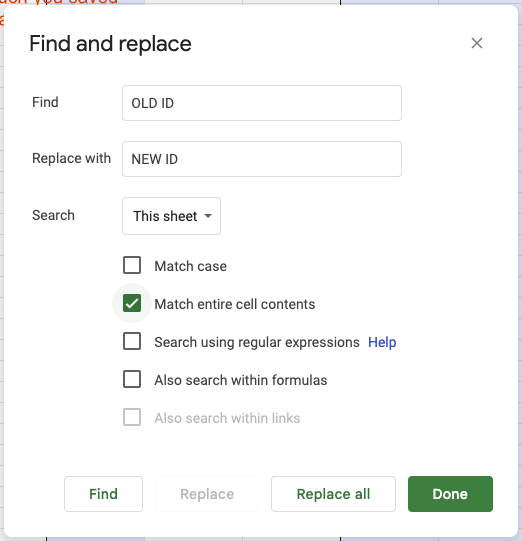
1. Find the **NEW** ID for your asset [using these instructions](/investments/how-to-find-an-asset-ticker)
2. Open the investment tab containing the asset (ETF, Stock, Managed Fund)
3. Click Edit → Find and Replace
4. Change the Search option from "All Sheets" to "This Sheet"
5. Check the "Match entire Cell contents" option
6. Enter the OLD ID in the Find box and the NEW ID in the Replace box
7. Click Replace All
8. Repeat Steps 3-7 in the Dividends Tab

<figure><img src="https://cspersonalfinance.io/img/ReplaceDialog.png" alt=""><figcaption><p>Example of the Find and Replace dialog box with sample inputs</p></figcaption></figure>

This updates the old values in both your watch table and purchase history.

### How do I enter my Spaceship/Raiz/Microinvestment Platform Investments? <a href="#spaceship-portfolios" id="spaceship-portfolios"></a>

**For Spaceship Voyager:**\
As of v2.10, Spaceship Voyager has live price support for all three fund types. In the Managed Funds tab, enter:

* Fund ID: SPACEVOYUNIV
* Fund Name: Spaceship Voyager Universe
* Fund ID: SPACEVOYORIGIN
* Fund Name: Spaceship Voyager Origin
* Fund ID: SPACEVOYEARTH
* Fund Name: Spaceship Voyager Earth

For Purchase History, enter your itemized purchases or a single purchase that you regularly update. Note that batching into a single purchase will make performance/gain figures less accurate.

Prices are updated every 24 hours.

**For Raiz & Other Investment Platforms:**\
You have two options:

1. **Other Assets Tab (Easiest)**: Your investments will be recorded in your Net Worth; update the balance before recording each month
2. **Managed Funds Tab**: Enter your platform as a Managed Fund and manually update the Live Price as needed (ignore any warnings). Enter the Purchase History as provided by your platform.

### How do I manage DRP or Dividend Reinvestment? <a href="#dividend-reinvestments" id="dividend-reinvestments"></a>

Enter reinvested distributions as new units in the ETF/Stocks tab—just like a normal purchase, but with $0 brokerage (overwrite the brokerage Column).

To determine the price and number of units purchased, check your Sharesight account or broker statement.

### How do I return my investments to 3-4 decimal places? <a href="#increase-decimal-places" id="increase-decimal-places"></a>

> Yahoo Finance, FT.com, and MorningStar tickers all return to 4 decimal places.
>
> If you are using Google Finance tickers, please follow the instructions below.

By default, the Sheet displays live prices with 2 decimal places (the default from Google Finance).

To increase to 3-4 decimal places with Google Finance tickers:

1. In the watch table, go to the 'Live Price' column for the asset you want to change
2. Find the formula `GoogleFinance(A2,"price")`
3. Replace it with `GoogleFinance(A2,"marketcap")/GoogleFinance(A2,"shares")`
4. Update the cell reference A2 to match the row you're editing (keeping column A)

Note: This is not officially supported, as Market Cap and Share values from Google Finance may be delayed and might not reflect the live price. This only works for assets using the Google Finance API.

### How do I account for Margin Loan Investments? <a href="#margin-loan-investments" id="margin-loan-investments"></a>

For margin loans, separate the investment and liability components:

1. Place all investments in the ETF/Stock tabs as appropriate
2. Add the loan component to the Liabilities tab

All proceeds such as dividends should be treated the same as normal holdings.

### I've sold all my Shares of a particular holding, can I remove them from the Purchase History table? <a href="#selling-out-of-holding" id="selling-out-of-holding"></a>

It's recommended to keep sold holdings in the Purchase History table, as these figures still affect your cash flows for specific months. Removing past purchases will skew your Savings rate calculations and potentially make other Sheet statistics incorrect.

Furthermore, removing sold holdings will also effect your CGT estimate (if applicable to you).

### I keep running out of Crypto API calls, why is that? <a href="#crypto-api-limits" id="crypto-api-limits"></a>

If you're using a Sheet before v2.10.8, upgrade to the latest version—the new Crypto price fetching has been completely rewritten and reduces CoinMarketCap API calls by up to 95%.

Additionally, old archived Sheets may still be checking Crypto prices. After updating to a new Sheet, remove the Crypto API key in the SheetOptions Tab from your old sheets. As of v2.11, this process is automated.

### I received some Crypto for free, how do I enter that? <a href="#no-cost-crypto-purchases" id="no-cost-crypto-purchases"></a>

Free Crypto should be entered as Crypto Staking Income, not as a $0 purchase. Entering it as a purchase at $0 will result in incorrect CGT and performance values, as well as incorrect gain calculations for tax purposes (free Crypto is usually treated as income, not a capital gain, depending on your region).

[Follow these instructions on entering free Crypto correctly](https://guide.cspersonalfinance.io/investments/crypto#staking-your-crypto).

### How do I manage private equity stocks? <a href="#private-equity-purchases" id="private-equity-purchases"></a>

Enter private equity as you would a normal stock purchase, but manually enter and update the 'Live Price' (ignore any warnings).

Note that when upgrading Sheet versions, you'll need to manually enter the Live Price in your new Sheet.

### How do I account for a lease such as a Car? <a href="#car-lease-entering" id="car-lease-entering"></a>

A lease (tax-incentivized rental with optional final balloon payment) doesn't factor into your net worth until you purchase the vehicle. During the lease period, the asset is owned by the leasing company.

The main place to track the lease is in the Budget tab, where you can enter your *after-tax* lease payment each month.

### How do I manage selling a property or home? <a href="#selling-a-home" id="selling-a-home"></a>

While this process is being improved, current steps are:

1. Set the original property's current value and mortgage value to $0
2. If purchasing a new home, add it as a new column in the Property Tab
3. Make sure any residual cash balance is reflected in the Cash tab

A simpler approach for rental properties:

1. Remove the property from the Property tab
2. Add the proceeds to a cash account

Future features may include property CGT estimations and improved performance forecasting. Leaving sold properties in the tab preserves history for future Sheet versions.

### My Crypto live price says 'Old Sheet', why is that? <a href="#crypto-old-sheet" id="crypto-old-sheet"></a>

If you see 'Old Sheet' instead of a live price, you're using the sheet you migrated *from* (your 'old' sheet). The migration tool deactivates Crypto price fetching in old sheets to prevent them from exhausting your API allowance.

You have three options:

1. Use the new sheet you previously migrated to
2. Set up a brand new sheet and migrate *to this sheet*
3. Clear cell **SheetOptions!B50** which flags that the sheet is 'older'

### My Live Prices are out by a factor of 100 - why is that? <a href="#crypto-api-limits" id="crypto-api-limits"></a>

You may be trying to fetch the live price of an asset that is priced in either **GBP (Great British Pounds)** or **GBX (Great British Pence)**. Depending on the currency used by Google Finance, Yahoo or your chosen pricing provider you may need to tweak the 'Currency' column in the watch table to be either GBP or GBX.&#x20;

Often times if you have entered **GBP** into the sheet, this should actually be **GBX**.

## Errors

### Permission Based errors

When using certain functions of the sheet, you may see these errors:

* *You do not have permission to call MailApp.sendEmail*
* *You do not have permission to call Ui.showModalDialog*
* *Error with Previous Sheet URL or Error accessing previous Sheet*

This is usually caused when granting permissions when [first setting up the sheet](/getting-started/initial-steps). During this setup process you are shown the following screen:

<figure><img src="/files/eBVYH99d8onrTko9AgcL" alt="" width="430"><figcaption></figcaption></figure>

Please make sure to select all to avoid any sheet messages. If you unselect any of the above, the sheet will still support core functions but certain features may be disabled. Errors may safely be ignored.

To see a list of what these permissions do and what features will be impacted, [please see here.](#sheet-permissions)


# Cash

The Cash tab tracks your cash accounts and savings goals.

![](/files/-MbzQGN1lzgY_68UTquM)

<details>

<summary>Manual User Cells</summary>

• Bank Names\
• Bank Currency\
• Bank Balance\
• Spend Notes

</details>

### Bank Account Section

This section allows you to record all your bank accounts in one place. Enter each account's name, currency, and balance. The sheet automatically calculates your total balance across all accounts.

#### International Bank Accounts

The currency column specifies which currency each account uses. The system automatically converts all currencies to your sheet's base currency.

For example, in an AUD-based sheet:

![An example of EUR, USD and AUD Bank accounts in a GBP Sheet](/files/-MfRvvDaxnEwhRSrFcxZ)

<table data-full-width="false"><thead><tr><th>Bank Account (Shown)</th><th>Currency (Shown)</th><th>Currency Balance (Shown)</th><th>Converted AUD Balance (Not Shown)</th></tr></thead><tbody><tr><td>ING</td><td>AUD</td><td>200</td><td>200</td></tr><tr><td>HSBC</td><td>GBP</td><td>200</td><td>111</td></tr><tr><td>Bank of America</td><td>USD</td><td>200</td><td>153</td></tr><tr><td></td><td></td><td><strong>Total AUD</strong></td><td>464</td></tr></tbody></table>

While the conversion calculations happen behind the scenes, the system works as shown in the table above. In this example, your total balance would display as **$464 AUD**.

### EOY Predicted Cash Balance Section

This section tracks your progress toward your End-of-Year Cash Goal. You can set this target in the SheetOptions tab.

### Cash Goal Section

Unlike the EOY goal, this section monitors progress toward a long-term Cash Goal that can extend years into the future. You can also set this goal in the SheetOptions tab.

### Savings Rate Section

This summary shows your average savings rates over different time periods. The "*3-Month Saving Rate ±%/Month*" indicates how your savings rate has changed in the past quarter.

For instance, if your average increased from 45% to 50%, this cell would display 5%. This helps you visualize the trend in your savings habits over time.

### House Savings Target/Year

This section tracks your progress toward saving for a house deposit. You can configure the target amount and related settings in the SheetOptions tab.

## Cash History

The Cash History table provides a comprehensive view of your financial progress over time.

<table data-full-width="false"><thead><tr><th width="235">Column</th><th>Explanation</th></tr></thead><tbody><tr><td>Date</td><td>The month for which data is displayed</td></tr><tr><td>Total Cash</td><td>Your total cash balance at month end</td></tr><tr><td>Cash Gain (Currency)</td><td>The amount your cash increased compared to the previous month</td></tr><tr><td>Cash Gain (%)</td><td>The percentage increase in your cash balance compared to the previous month</td></tr><tr><td>Added Investments</td><td>New investments made since the previous month, including:<br>Stocks, ETFs, Crypto, Voluntary Retirement Contributions, Managed Funds, Other Assets</td></tr><tr><td>Savings Rate</td><td>Your monthly savings rate, calculated as:<br>(Total Cash Gain + Added Investments) / (Total Income - Salary, Side Income, Dividends)</td></tr><tr><td>Monthly Savings</td><td>Monthly Cash Gain + Added investments</td></tr><tr><td>Projected Cash</td><td>Your projected cash balance for this month</td></tr><tr><td>Monthly Spend</td><td>Your total expenditure for the month to date</td></tr><tr><td>Notes</td><td>Space for recording significant purchases or explaining unusual cash movements</td></tr></tbody></table>


# ETFs & Shares

The ETF and Shares tabs track your past purchases and current live price movements of your assets.

<details>

<summary><strong>Manual User Cells</strong></summary>

• ETF & Share Details in the Watch table at the top\
• Purchase History in the Purchase History table at the bottom

</details>

## Introduction

The ETFs & Shares tab lets you monitor your investments and gain insights into their performance. At the top of the tab, you'll find the **Watch table**, which displays details of both owned and watched assets.

![The Watch Table](/files/-MbzQZRcbJ5-uFy7g4ev)

Below that is the **Purchase History table**, which lists all your buy/sell transactions. The sheet uses this data to automatically calculate your investment performance.

![Purchase History Table](/files/-MbzQaxFfqixE3Fbq6-L)

## Adding a new ETF/Share to the Watch list

To track a new ETF or share (owned or just watched), fill in a new row in the Watch table from left to right. Assets priced in foreign currencies are supported.

<table><thead><tr><th width="211">Column</th><th>Explanation</th></tr></thead><tbody><tr><td>Ticker</td><td>Stock market code, including the exchange and the asset symbol (e.g., "ASX:VGS").<a href="/pages/u52T7ytAsMtB6HhxnaLf">Learn how to find your asset ticker.</a></td></tr><tr><td>Fund Name (ETFs only)</td><td>Your custom label or nickname for the fund.</td></tr><tr><td>Currency</td><td>The currency in which the asset is priced.<br>For example, if you own Apple shares on a AUD-based sheet, enter "NASDAQ:AAPL" and use "USD" as the currency.<br>The Live Price will be automatically converted to AUD.</td></tr><tr><td>Target Allocation</td><td>Used to maintain your portfolio balance by assigning a percentage allocation for each asset.</td></tr><tr><td>MGT Fee (ETFs only)</td><td>Optional. Add the fund’s management fee for your own reference.</td></tr><tr><td>Location (ETFs only)</td><td>Optional. Helps visualize regional diversification in the graphs.</td></tr><tr><td>Region % (ETFs only)</td><td>Optional. Contributes to regional diversification graphs.</td></tr><tr><td>Sector</td><td>Optional. Helps show sector diversification and can isolate assets used in retirement balances.<a href="https://guide.cspersonalfinance.io/summary-tabs/retirement#using-managed-funds-and-investments-in-your-retirement-balance">Learn more here.</a></td></tr></tbody></table>

{% hint style="info" %}
Not sure about the Ticker code? Google the asset name and look for the ticker and market code.
{% endhint %}

![Finding the Ticker "NASDAQ:AAPL" via a Google Search](/files/-MSvDzraONh652EHFAEK)

## Buying and Selling

Each time you buy or sell, record the transaction in the Purchase History table.

<table><thead><tr><th width="242">Column</th><th>Explanation</th></tr></thead><tbody><tr><td>Ticker</td><td>Must match the ticker used in the Watch table.</td></tr><tr><td>Purchase Date</td><td>Date of the transaction.</td></tr><tr><td>Volume</td><td>Number of units bought (positive) or sold (negative).</td></tr><tr><td>Bought Price</td><td>Price per unit at the time of transaction.</td></tr><tr><td>Brokerage</td><td>Brokerage fee. This auto-fills, but you can adjust it.</td></tr><tr><td>Sold Units (if needed)</td><td>Tracks how many units from a purchase have been sold (FIFO method). You can change this if preferred.</td></tr></tbody></table>

{% hint style="danger" %}
**Important:** Any asset you still own (positive balance) must also be listed in the Watch table so the current price can be fetched.
{% endhint %}

#### Automatic Price Lookups

<figure><img src="/files/plb9N5NZ5iKRAqdsxGIg" alt=""><figcaption></figcaption></figure>

{% hint style="info" %}
Auto price lookup is now supported for local and international holdings. A few things to note:

* The asset must be listed in the Watch table with a currency defined.
* Lookups are limited to 50 transactions at a time. After a value is fetched, it's automatically converted to a static number to free up quota.
* These are average daily prices, so they won’t match your actual order price exactly.
* Currency conversion is also averaged.
* For accurate performance or CGT estimates, it’s best to manually enter your order price if known.
* Only tickers supported by Google Finance are eligible.
  {% endhint %}

## Returning the price with 3–4 Decimal Places

[See the FAQ here.](https://guide.cspersonalfinance.io/getting-started/faqs#increase-decimal-places)

## International ETF & Share Support

Version 2 adds support for international assets, converting them to your base currency in real time. These values are included in your net worth with the latest exchange rate.

### Step 1 – Add the asset to the Watch table

![Example ETF/Share Watch Table in the UK Sheet](/files/-MfRx9McT5FyoGPkHyax)

Enter the asset’s ticker (Column A), name (Column B), and the currency it's priced in (Column C).

![Example of finding the ticker and currency for NASDAQ:TSLA](/files/-MfRxvnyhGMe-t7_f8N0)

In the example above, the Live Price column shows the local currency equivalent (e.g., $643.38 USD becomes £467.96 GBP).

### Step 2 – Record purchases for international assets

![Example ETF/Share Purchase History Table in the UK Sheet](/files/-MfRxCLqaCim99lXGeTu)

Record international purchases as you would local ones, except:

* The **Order Price must be entered in your local currency** at the time of purchase.

For example:\
If you bought 10 NASDAQ:TSLA shares for $250 USD and your sheet uses GBP, convert and enter £181.84 as the Order Price.

{% hint style="info" %}
Automatic price lookup support includes currency conversion (v2.14+). Same limitations as above apply:

* Must be listed in the Watch table with currency set
* 50 transaction limit (replaced with static values automatically)
* Values are estimates, based on daily averages
* Manually enter exact prices for accuracy
* Works only with tickers supported by Google Finance
  {% endhint %}

#### Backdated Currency Rates

To find historical exchange rates, use:

* [XE Currency Tables](https://www.xe.com/currencytables/)
* [X-Rates Historical](https://www.x-rates.com/historical/)
* [OFX Exchange Rates](https://www.ofx.com/en-au/forex-news/historical-exchange-rates/)

Future versions of the Sheet will support automatic conversion of past transactions.

## Adding new rows to the Watch table

Need more rows in the Watch table? Here's how:

**Step 1 –** Right-click on a row containing an existing yellow holding.

**Step 2 –** Select *Insert 1 above.*

![](/files/-MSvI4UJQX5fIcXeaToA)

**Step 3 –** Right-click the same row again and select **Copy**.

![](/files/-MSvINKCmVnnGlt7Crhw)

**Step 4 –** Right-click the new empty row and select **Paste**.

![](/files/-MSvI_dToMHlpvj74OVD)

Repeat this process to add more rows as needed. The copied formulas will carry over.


# Managed Funds

The Managed Fund tab tracks your investments live prices and performance of your holdings.

<details>

<summary><strong>Manual User Cells</strong></summary>

• Managed Fund Details in the Watch table at the top\
• Purchase History in the Purchase History table towards the bottom

</details>

## Introduction

The Managed Fund tab helps you track your investments and provides insights into their performance. The tab consists of two main components:

1. The **Watch table** at the top displays information about your investments (both those you've invested in and those you're following but haven't invested in yet).

![The Watch Table](/files/-MbzQoPW4R9lYlF9uiIr)

2. The **Purchase History table** records all your purchases. Using these exact dates and prices, the Sheet automatically calculates various performance statistics.

![The Purchase History Table](/files/-MfS42vGhMQC32QldwAw)

## Adding a new Fund purchase to the Watch list

To start tracking a fund, complete a new row in the Watch table by filling in the fields from left to right:

<table><thead><tr><th width="194">Column</th><th>Explanation</th></tr></thead><tbody><tr><td>ID</td><td>The fund's identifier from Bloomberg, MorningStar, Yahoo Finance, or FT.com. Since different platforms track different funds, you'll need to determine which source tracks your fund and find its ID.<br><br><a href="/pages/u52T7ytAsMtB6HhxnaLf">Click here for instructions on finding your fund ticker.</a></td></tr><tr><td>Fund Name</td><td>A simple nickname for the fund that helps you identify it.</td></tr><tr><td>Currency</td><td>The currency in which the fund is priced. For example, if you have an AUD-based sheet but own an American fund, enter USD as the currency.<br><br>The <em>Live Price</em> will then display the converted price in your local currency.</td></tr><tr><td>Target Allocation</td><td>If you maintain target allocations in your portfolio to keep holdings balanced, enter the percentage here.</td></tr><tr><td>MGT Fee</td><td>The management fee for the fund. This is for reference only and helps you keep track of fees across your investments.</td></tr><tr><td>Location</td><td>A reference field to help ensure geographic diversification. This information populates the graphs on the right side of the tab.</td></tr><tr><td>Region %</td><td>A reference field to track regional diversification. This information populates the graphs on the right side of the tab.</td></tr><tr><td>Sector</td><td>A reference field to track sector diversification. This information populates the graphs on the right side of the tab.</td></tr></tbody></table>

{% hint style="info" %}
If you're unsure about your Fund ID, [follow these instructions to find your Fund ID](/investments/how-to-find-an-asset-ticker).
{% endhint %}

## Buying and Selling

Each time you buy or sell units in a Managed Fund, update the Purchase History table with the following information:

| Column        | Explanation                                                                  |
| ------------- | ---------------------------------------------------------------------------- |
| Ticker        | The ticker that matches the holding in the Watch table.                      |
| Purchase Date | The date of the transaction.                                                 |
| Volume        | The number of units transacted (positive for purchases, negative for sales). |
| Bought Price  | The price per unit in your local base currency.                              |

{% hint style="danger" %}
**IMPORTANT:** Any fund that you currently own (with a positive balance) and have transaction history for **must** appear in the Watch table.
{% endhint %}

{% hint style="info" %}
**Automatic price lookups - for v2.14 and above:**

Version 2.14 introduced automatic price lookup support, including for assets in different currencies. Important notes:

* The asset must be in the Watch table with the correct currency setting
* To conserve Google's quota limits, only 50 transactions can be looked up at once. After a value is retrieved, replace the formula with the actual value to free up slots for other lookups.
  * This process happens automatically when you open your sheet.
* **These lookups provide estimates only.** Prices fluctuate throughout the day, so the value returned is an average from the day, not an exact figure.
  * This applies to currency fluctuations as well.
  * For more accurate gain and CGT estimates, enter your exact transaction price if available.
* Support is limited to tickers available through Google Finance
  {% endhint %}

## Returning the price with 3-4 Decimal Places

[See the FAQ on this topic here.](https://guide.cspersonalfinance.io/getting-started/faqs#increase-decimal-places)

## International Managed Fund Support

Version 2 of the Sheet supports international funds and converts their values to your local currency in real-time. These assets are included in your net worth using the current day's exchange rate.

### Step 1 - Entering an international asset into the Watch table

![Example Watch Table in UK Sheet](/files/-MfS19xrLYiwZHVvK3NA)

To add an international asset, first enter its ID (column A) and name (column B) in the Watch table. Then enter the currency in which the asset is priced (column C). For example, use USD for assets on the NYSE (New York Stock Exchange). Verify the currency on the website where you found the Managed Fund ID.

![Example fund with data sourced from Yahoo Finance](/files/-MfS0srxAZzTkM_L0WbO)

In the example above, the Watch table displays the converted local value in the *Live Price* column. For the fund MGE0001AU.AX, the original price is $1.97 AUD, but the Sheet displays the converted value of £1.05 GBP.

### Step 2 - Entering purchases for an international asset

![](/files/-MfS42vGhMQC32QldwAw)

Recording purchases for international assets is similar to local assets. The key difference is the *Order Price* column, which **must contain the pre-converted price in your local currency**.

For example:\
If you have the UK Sheet (GBP currency) and purchased 10 units of FXAIX at $153 USD per unit, you would enter the converted amount of £111.42 in the Order Price column.

#### Backdated Currency rates

{% hint style="info" %}
**Automatic price lookups - for v2.14 and above:**

A recent update added automatic price lookups with currency conversion support. Important notes:

* The asset must be in the Watch table with the correct currency setting
* Only 50 transactions can be processed at once to conserve Google's quota. After a value is retrieved, replace the formula with the actual value to free up slots.
  * This happens automatically when you open your sheet.
* **These lookups provide estimates only.** Both ticker and currency prices fluctuate throughout the day, so values are averaged.
  * For accurate gain and CGT estimates, enter your exact transaction price when available.
* Support is limited to funds available through Google Finance
  {% endhint %}

For historical purchases where you need past exchange rates, use these resources:

* <https://www.xe.com/currencytables/>
* [https://www.x-rates.com/historical/](https://www.x-rates.com/historical/?from=USD\&amount=1\&date=2021-07-25)
* <https://www.ofx.com/en-au/forex-news/historical-exchange-rates/>

Automatic conversion for past transactions will be added in a future update.

## Adding new rows to the Watch table

To expand the Watch table:

**Step 1 -** Right-click on any row containing a yellow holding.

**Step 2 -** Select *Insert 1 above*.

![](/files/-MSvI4UJQX5fIcXeaToA)

**Step 3 -** The new row will be empty of formulas. To add them, right-click on the row you used in *Step 1* and select **Copy**.

![](/files/-MSvINKCmVnnGlt7Crhw)

**Step 4 -** Click on the empty row created in *Step 2*, right-click and select **Paste**.

![](/files/-MSvI_dToMHlpvj74OVD)

This will expand the table and fill the new row with all required formulas. Repeat as needed.

## Spaceship, Raiz and Microinvesting Platform Support

### Spaceship Voyager

For Spaceship Voyager funds, enter the following details in the Managed Funds tab:

**Spaceship Voyager Universe:**

* Fund ID - **SPACEVOYUNIV**
* Fund Name (Important) - **Spaceship Voyager Universe**

**Spaceship Voyager Origin:**

* Fund ID - **SPACEVOYORIGIN**
* Fund Name (Important) - **Spaceship Voyager Origin**

**Spaceship Voyager Earth:**

* Fund ID - **SPACEVOYEARTH**
* Fund Name (Important) - **Spaceship Voyager Earth**

**Spaceship Voyager Galaxy:**

* Fund ID - **SPACEVOYGALAXY**
* Fund Name (Important) - **Spaceship Voyager Galaxy**

**Spaceship Voyager Explorer:**

* Fund ID - **SPACEVOYEXPLORER**
* Fund Name (Important) - **Spaceship Voyager Explorer**

For Purchase History, enter either your itemized transactions or, if you have many purchases, a single entry that you update regularly. Note that consolidating purchases into a single entry will make performance/gain calculations inaccurate.

Prices are updated every 24 hours.

### **For Raiz & Other Investment Platforms:**

For other microinvestment platforms, you have two options:

1. **Other Assets Tab (Easiest)** - This records your investments in your net worth, but you'll need to update the balance before recording each month.
2. **Managed Funds Tab** - Enter your platform as a managed fund and manually update the live price as needed (ignore any warnings). Enter purchase history as provided by your platform.


# How to find an Asset Ticker

This sheet supports live pricing from Google, MorningStar, FT.com and Yahoo Finance. Depending on where your asset is listed, use the corresponding pricing provider.

## Google Finance (ETFs, Stocks only)

1\. Google your Fund Name with the following search: *"AssetNameHere Share Price"*

2\. Copy the ID as per below into the Sheet:

<figure><img src="/files/GcnU3MMD9pjB796DJldJ" alt=""><figcaption><p>Example of Apple Share Price ID being 'NASDAQ:AAPL'</p></figcaption></figure>

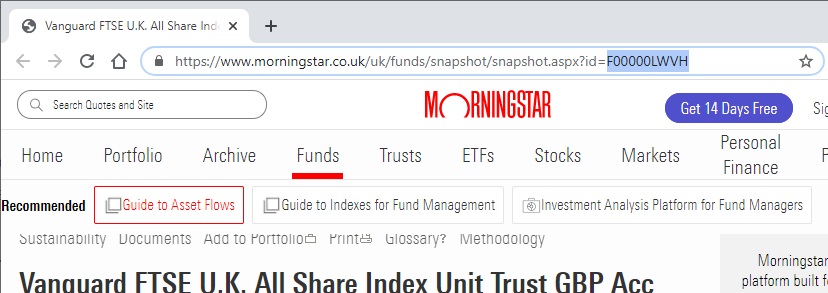
## MorningStar - UK Funds

1\. Google your Fund Name with the following search: *"MorningStar FundNameHere"*

2\. Copy the ID in the URL of the page as per below into the Sheet:

<figure><img src="https://cspersonalfinance.io/img/MS%20-%20UK%20Funds.jpg" alt=""><figcaption></figcaption></figure>

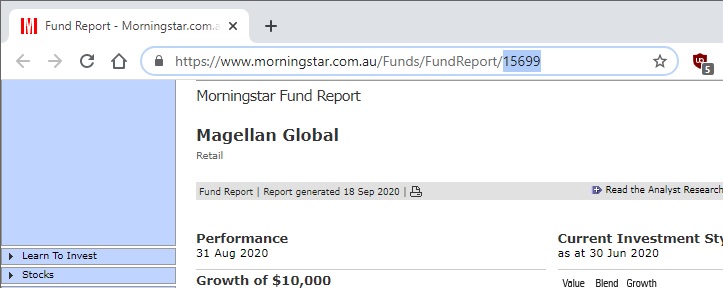
## MorningStar - Australian Funds

1\. Google your Fund Name with the following search: *"MorningStar FundNameHere"*

2\. Copy the ID in the URL of the page as per below into the Sheet:

<figure><img src="https://cspersonalfinance.io/img/MS%20-%20AusFunds.jpg" alt=""><figcaption></figcaption></figure>

3\. Convert the ID to a native MorningStar ID [using this tool here.](https://cspersonalfinance.io/tools/morningstarLookup)

## Yahoo Funds

1\. Google your Fund Name with the following search: *"Yahoo Finance FundNameHere"*

2\. Copy the ID in the URL of the page as per below into the Sheet

<figure><img src="https://cspersonalfinance.io/img/YahooFinance.png" alt=""><figcaption></figcaption></figure>

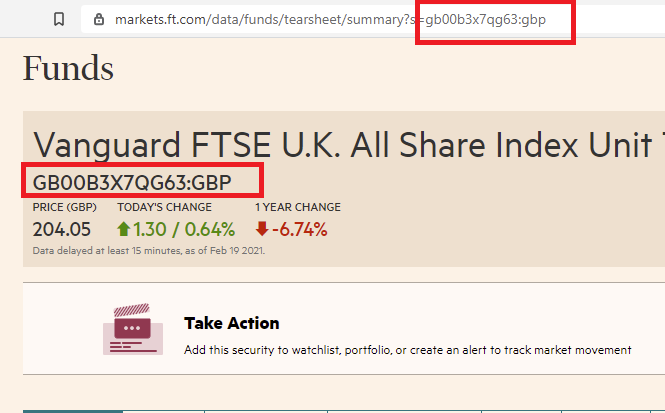
## FT.com Funds

1\. Google your Fund Name with the following search: *"FT.com FundNameHere"*

2\. Copy the ID in the URL of the page as per below into the Sheet:

<figure><img src="https://cspersonalfinance.io/img/FTcom%20ManagedFunds.png" alt=""><figcaption></figcaption></figure>


# Dividends

Dividends form a very important part of investment returns, especially high-dividend paying stocks. By entering dividends, you keep your performance statistics accurate.

![Partial screenshot of Dividends tab](/files/-MSvOCQm0cxvbuU6crzQ)

<details>

<summary><strong>Manual User Cells:</strong></summary>

&#x20;• Dividend History and 6 respective columns\
&#x20;• Dividend Reinvestment - Dividend Payout frequency\
&#x20;• Dividend Reinvestment - DRP on/off status

</details>

Entering Dividends into the Dividends tab automatically filters through to the ETF, Stock and Managed Funds tab (if applicable). This in turn factors into your *Total Return* and *Dividends* figures ensuring your *total return* figures are accurate.

## Entering a Dividend

To enter a dividend, fill out a new row according to the below:

| Column       | Explanation                                                                                                                                                                    |
| ------------ | ------------------------------------------------------------------------------------------------------------------------------------------------------------------------------ |
| Payment Date | This is the date that the payment is made to you, either to your Bank or DRP.                                                                                                  |
| Ticker       | This is the Ticker code responsible for the dividend, matched to your Watch table.                                                                                             |
| Holding Type | The category of the dividend (see dropdown).                                                                                                                                   |
| Ex-Dividend  | The date that the fund went ex-dividend. This is used to calculate the yield of the holding. Please see the holding providers announcement or Google search to find this date. |
| Reinvested?  | Yes/No to whether the dividend was reinvested.                                                                                                                                 |
| Net Amount   | The *NET* *after-tax* amount that you were paid.                                                                                                                               |

![](/files/-MSvO2sYHYsBrYZHujsK)

{% hint style="info" %}
Crypto staking is planned for a future Sheet version.
{% endhint %}

## Dividend Reinvestment Analyser

The Sheet can help you determine and calculate how long it will take for your reinvested dividends to purchase one whole unit. This is based on yields and how often Dividends are paid. \
\
*Dividends Freq (m)* refers to how often a particular holding pays Dividends. Please see the holding website for this information. This may be quarterly, annually or twice annually for example. Enter this figure in terms of months (ie. 3,6,12).

![](/files/-MSvO4v_HUcG2MQZ_TBm)


# Property

The Property Tab tracks the performance of owned real estate as well as associated mortgages.

![](/files/-MXtVZmbJEol085w7lGe)

<details>

<summary><strong>Manual User Cells</strong></summary>

&#x20;• Property purchase & live price information\
&#x20;• Mortgage details

</details>

## Entering in a Property

To enter in a property, simply fill out the various yellow cells in the Property rows.

| Row                         | Explanation                                                                                                                                                                                                         |
| --------------------------- | ------------------------------------------------------------------------------------------------------------------------------------------------------------------------------------------------------------------- |
| Date of Purchase            | The date that you settled on the property.                                                                                                                                                                          |
| Primary Residence           | <p>Yes/No - This factors into your FIRE calculations as your primary residence is not included in your total Net Worth.<br><br>In a future release, this will also influence CGT estimates for sold properties.</p> |
| Purchase Value              | How much you paid for the property.                                                                                                                                                                                 |
| Net Rent Profit to Date     | How much *profit* you have received on the property. This factors into your overall gain figures.                                                                                                                   |
| Estimated Gain (%) per year | The estimated Gain (%) per year, handy when comparing to other assets.                                                                                                                                              |

## Entering in a Mortgage

To enter in a property, simply fill out the various yellow cells in the Mortgage rows.

| Field                                | Explanation                                                                                    |
| ------------------------------------ | ---------------------------------------------------------------------------------------------- |
| Mortgage Start Date                  | The date your mortgage started.                                                                |
| Interest Frequency                   | How often your interest is calculated per year. This is could be daily or monthly for example. |
| Annual Interest Rate                 | What your annual interest rate is.                                                             |
| Regular Payment / month              | How much you pay towards your Mortgage in total each month.                                    |
| Start Mortgage Balance               | What your *initial* mortgage balance is.                                                       |
| Current Mortgage Balance             | What your *current* mortgage balance is.                                                       |
| Mortgage Payments Paid               | If known, how much you've paid on your mortgage to date.                                       |
| Total Interest/Fees accrued          | How much you've accrued in fees or interest.                                                   |
| Estimated interest/period            | An estimate of the amount of fees you pay per period (see interest frequency).                 |
| Estimated total interest on Mortgage | An estimate of how much interest you'll pay on your mortgage over its lifetime.                |
| Estimated Final Payment Date         | An estimated date of when you'll finish your mortgage.                                         |

## How to include your Mortgage Offset Account

Starting in v2.15 is a new ability to automatically include your mortgage offset in your property tracking. This involves entering your mortgage offset as a cash account in the cash tab, and marking the 'Offset' checkbox to classify that account as an offset account.

<figure><img src="/files/xbwIEGSQSHyK41jY19Yh" alt=""><figcaption></figcaption></figure>

This will:

* Make sure this account isn't tracked as a normal Cash account in your overall Cash balance
* Will automatically include this account in the Property tab field '*Mortgage Payments Paid ($)*'
* In the Sheet Options tab field '*Cash - Offsets include emergency fund*' - if this is set to "Yes" your Emergency Fund amount will be deducted first out of this offset balance before being applied to your Mortgage balance. By default this is set to no.&#x20;

**Please note that by default the Offset column is hidden by default** and needs to be unhidden to be usable. You can unhide this column by clicking the arrows at the "E" label at the top of the column.

## Rental Income & Investment Properties

Income from a an investment property should be entered into the **Side Income** tab. Rename one of the example columns as needed and enter the *after-tax* rent each month.&#x20;

Rental income can also be accounted for in the Property tab in the "**Net Rent Profit To Date ($)**" row, which will include this rental profit in your overall property return value.


# Crypto

The Crypto tab tracks your investments live prices and performance of your Crypto holdings.

![](/files/-MXtVhuJ-OkhKOIegWmM)

{% hint style="info" %}
**Manual User Cells:**\
• Watch Table - Ticker Code\
• Watch Table - Target Allocation\
• Purchase History in the Purchase History table towards the bottom
{% endhint %}

{% hint style="info" %}
This feature is only available in the v2 Sheet due to API requirements.
{% endhint %}

{% hint style="warning" %}
Please note that to use the Crypto Tab you will need to sign up for a CoinMarketCap API key and enter this into the SheetOptions tab. Please signup for a CoinMarketCap API key here - <https://pro.coinmarketcap.com/signup/>
{% endhint %}

## Introduction to the Tab

The Crypto tab allows you to track your cryptocurrency investments in real-time with detailed performance statistics. The tab consists of two main sections:

1. The **Watch table** at the top displays information about your cryptocurrency investments, including those you've purchased and those you're just monitoring.

![](/files/-MTFZ3phaGDZWEnsUyU3)

2. The **Purchase History table** lists all your cryptocurrency transactions. The sheet uses this data to automatically calculate various performance metrics.

![](/files/-MSvUYygKGtsV79BNg1E)

## Adding a new Crypto to the Watch list

To track a new cryptocurrency that you own or are interested in, simply add a new row to the Watch table and fill in the required information from left to right:

| Column            | Explanation                                                                                                                                                                                            |
| ----------------- | ------------------------------------------------------------------------------------------------------------------------------------------------------------------------------------------------------ |
| Ticker            | Enter the ticker code based on your chosen exchange. For CoinMarketCap, use the abbreviated ticker (e.g., BTC, ETH). For CoinGecko, use the full cryptocurrency name (e.g., "Bitcoin", "Ethereum").    |
| Target Allocation | If you manage your portfolio with target allocations to maintain balance across your holdings, enter your desired allocation percentage here. This helps the sheet calculate rebalancing requirements. |

## Buying and Selling

Every cryptocurrency transaction must be recorded in the Purchase History table. Here's how to enter your buys and sells:

| Column                 | Explanation                                                                                                                                                                                                  |
| ---------------------- | ------------------------------------------------------------------------------------------------------------------------------------------------------------------------------------------------------------ |
| Ticker                 | Enter a ticker that matches a cryptocurrency in your Watch table.                                                                                                                                            |
| Purchase Date          | Enter the date of the transaction.                                                                                                                                                                           |
| Volume                 | Enter the number of units involved in the transaction. Use positive numbers for purchases and negative numbers for sales.                                                                                    |
| Unit Price             | Enter the price per unit in your local currency. For trades between cryptocurrencies (e.g., BTC → ETH), you'll need to convert to your local currency (see example below).                                   |
| Brokerage              | Enter any fees or brokerage costs associated with the transaction.                                                                                                                                           |
| Sold Units (if needed) | This column automatically tracks how much of an original purchase you've sold, using the first-in-first-out (FIFO) principle. You can manually adjust this cell if you prefer a different accounting method. |

{% hint style="danger" %}
**IMPORTANT:** All cryptocurrencies that you currently own (have a positive balance for) and have transaction history for **must** be included in the Watch table. This is essential because the current price is fetched from this table.
{% endhint %}

#### Buying and Selling between non-FIAT pairs

When trading between cryptocurrencies (non-FIAT pairs), you need to convert the transaction value to your local currency for proper tracking. Here's an example:

**Example: Purchasing 3 ETH with 0.12463836 BTC**

Your Purchase History entry would be:

* Ticker: ETH
* Volume: 3
* Unit Price: $2,115 (calculated below)

**Calculating the Unit Price:**

1. 3 ETH = 0.12463836 BTC
2. With BTC price at $50,814, the total transaction value is: 0.12463836 BTC × $50,814 = $6,347
3. Unit price per ETH = $6,347 ÷ 3 = $2,115

**Calculating Fees:**\
If your fee was 0.0012463836 BTC, convert it to your local currency:\
0.0012463836 BTC × $50,814 = $63.33

Enter $63.33 as your fee in the Brokerage column.

## Choosing your pricing provider (CoinMarketCap vs CoinGecko)

As of v2.12, you can choose between CoinMarketCap or CoinGecko for cryptocurrency pricing. Make your selection in the SheetOptions tab based on these considerations:

**CoinMarketCap:**

* Requires ticker format entries (e.g., "BTC", "ETH")
* Requires an API key ([sign up here](https://pro.coinmarketcap.com/signup/))
* Provides reliable price data
* Covers approximately 90% of cryptocurrencies

**CoinGecko:**

* Requires full cryptocurrency name entries matching CoinGecko's website (e.g., "Bitcoin", "Ethereum")
* No API key required
* May experience occasional loading issues due to Google Cloud rate limiting
* Offers broader coverage for certain obscure cryptocurrencies

## My Live Price says 'Old Sheet', why is that?

If you see 'Old Sheet' instead of live prices, it means you're using a sheet that was previously migrated from (your 'old' sheet). The migration tool deactivates cryptocurrency price fetching in the old sheet to prevent unnecessary API calls that would exhaust your allowance.

To resolve this issue, you have three options:

1. Use the new sheet that you previously migrated to
2. Create a brand new sheet and migrate your data to it
3. Clear the value in **SheetOptions!B50** which flags the sheet as 'older'

## Crypto Transfer Fees

To account for cryptocurrency transfer fees, record them as sell orders in the Purchase History table:

* Ticker: Enter the cryptocurrency ticker
* Volume: Enter the fee amount (as a negative number)
* Unit Price: Enter the cryptocurrency price at the time of transfer

This method ensures your cryptocurrency balances and performance statistics remain accurate.

## Crypto Staking & Interest

As of v2.11, you can track cryptocurrency staking and interest income. Follow these steps:

1. Enter your staking income in the Dividends tab:
   * Payment Date: When the staking reward was paid
   * Ticker: The cryptocurrency ticker
   * Holding Type: Set to "Crypto"
   * Ex-Dividend: Set this to the same as the Payment Date (irrelevant for crypto)
   * Reinvested: Set to "Yes"
   * Net Amount: The amount received, converted to your sheet's base currency

![](/files/-MYYe42dlRgEzoKxQyNI)

2. In the Dividends tab, for first-time entries of a cryptocurrency, set:
   * Dividend Frequency: How often you receive payouts (e.g., weekly = 52, monthly = 12)
   * DRP: Set to "YES"

![](/files/-MYYe6_U5bldlcOSMmmy)

3. In the Purchase History table, enter the staking amount as a new purchase:

{% hint style="warning" %}
**NOTE:** The Unit Price must be the cryptocurrency's price on the day the staking reward was paid. Do not set this to $0 as this will cause incorrect capital gains calculations and double-count your gain.
{% endhint %}

![](/files/-MYYe8zbK7bzy1oM7V83)

4. The yield will now appear in your total returns, with an automatically calculated annual yield percentage.

![](/files/-MYYeB8r21qr5OjNZ1ZK)

## Adding new rows to the Watch table

To expand the Watch table with additional rows:

**Step 1 -** Right-click on any row containing a yellow holding.

**Step 2 -** Click *Insert 1 above.*

![](/files/-MSvI4UJQX5fIcXeaToA)

**Step 3 -** Right-click on the row you selected in Step 1 and click **Copy**.

![](/files/-MSvINKCmVnnGlt7Crhw)

**Step 4 -** Right-click on the empty row you created in Step 2 and click **Paste**.

![](/files/-MSvI_dToMHlpvj74OVD)

This process will add a new row with all the required formulas. Repeat as needed to add more rows to your Watch table.


# Net Worth

The Net Worth Dashboard is a summary fed by the data in all the other tabs combined. Its purpose is to give you a holistic glance of your financial position, and how you have progressed over time.

![](/files/-MTFcKdzCSy7huiT1dLa)

{% hint style="info" %}
**Manual User Cells:**\
&#x20;• No manual entry required.
{% endhint %}

All data in this tab is automatically fed from other portions of the Sheet.&#x20;

Most notably in the Sheet is the *Record Net Worth* button, which is required to be pressed once a month after updating the values in the rest of the Sheet. Please see the *Recording a Month* portion of this guide for more information on this process.

![The Record Month button](/files/-MSv11jj34ukc_tJBh0E)


# Budget

The Budget tab is designed to help you put together a detailed budget, and also inform the rest of the Sheets automations about how much you would expect to spend in a month.

![](/files/-MbzFj9IShM35IsH9XVA)

{% hint style="info" %}
**Manual User Cells:**\
&#x20;• Budget Table line items and corresponding details\
&#x20;• Yearly expenses table details
{% endhint %}

This tab is quite important as it drives some portions of the Sheet which help recommend amounts that you can put into Cash/investments. These in particular are driven by the *Cash Savings - Automatic* and *Investment Savings - Automatic* line items.\
\
Additionally, a major part of a budget that often people miss is yearly expenses. These can often be large lump sums that when added together can account for a large part of your monthly budget. These are automatically summed together and then included in your monthly budgeting amount.

Lastly, any monthly mortgage or liability payments that you have recorded in these respective tabs will also show automatically in your budget.

The *Actual spend* figure in the top right hand corner is based upon the average spend seen in the Cash tab. This is based off the formula:

&#x20;    Total Income = Total Saved + **Total Spent**\
\
This tab is designed to be only approximate, but make sure to keep it updated and relatively accurate.

### Monthly Budget Table

![](/files/-MbzGVGSvUgHBPiSM82D)

The Monthly Expenses table is where you enter your budget. Each Column has a different purpose:

* **ITEM** - This is where you would put the name of an expense into your budget that you pay each month. This could be anything, common items could be fuel, a mobile phone bill, your rent or any cost that you incur each month.
* **Monthly ($) -** In this column enter the amount you spend on the expense each month. For expenses that are not paid monthly, use the yearly expenses table below if this is more appropriate.
* **Bank Account** - Select the name of the Bank account from the drop down list. This list is populated by the names of the accounts in the Cash tab.
* **Category** - Assign a category to this expense to help group them together. This populates the graphs to the right.

### Yearly Expenses Table

![](/files/-MbzHLFGIAv4YTLl9sKT)

The Yearly expenses table is where you would enter expenses that are paid annually or an a more infrequent basis. You enter in the name of the expense, and then how much it costs per year in the *Yearly Cost* column. This may be useful for expenses such as vehicle registration or insurances.&#x20;

The Sheet will then automatically convert this into an equivalent monthly cost for you and place it automatically into your budget under the *"Yearly Expenses - Automatic"* line.

### Automatic Bank Transfers

![](/files/-MbzG_w4uXDADI9UBk3P)

The Automatic Bank Transfers table is a summary of all the expenses that you have in your Monthly Budget table and from which bank account they are paid, showing you where your money needs to be sent each month. Some use this to automate their savings each month by setting up regular bank transfers that coincide with them they are paid, to send the month to the correct account automatically.

### Graphs & Statistics

![](/files/-MbzGcjls4IIdOn4x4sO)

The Graphics and Statistics area is a summary of your expected Savings and Spend

* **Planned Spend** - This is how much you are expected to spend on items in your budget that aren't Savings.
* **Actual Spend** - Going by a 6-month average, this is how much through your monthly recordings you are showing on average as spending.
* **Monthly Savings** - This is your *expected* Monthly savings.
* **Yearly Savings** - This is your *expected* Yearly savings.
* **Estimated Savings** - This is your *expected* Savings rate. For your actual savings rate, please see the Cash tab.

### Settings Overview Area

![](/files/-MbzkIFsADDaAJSvIH31)

In v2 this area is just a summary of your settings for the Sheet that are used to calculate the numbers for your budget. Please note these cells are ***not*** the cells that drive the Budget tab or other parts of the Sheet. These come from the SheetOptions tab.

**If you need to change any of these numbers, please do so in the SheetOptions tab and not the Budget Tab.**


# Retirement

The Retirement tab tracks the performance and change in your Retirement accounts over time. This can be your Super, Pension, 401k, IRA or any other type of retirement balance.

![](/files/-MbzRTJgIuNp7LdB0RH1)

{% hint style="info" %}
**Manual User Cells:**\
• Retirement account names and balances\
• Market Gain values (see note) \[Optional]\
• Voluntary Contribution amount \[Optional]\
• Retirement Setting for pre-mixed options (i.e., High Growth, 100% equities, etc.) \[Optional]
{% endhint %}

To start tracking your Retirement balance, simply enter the balance of your accounts in the "Retirement Balance" table in the top left. Only modify cells that are highlighted in yellow. Before recording your monthly data, make sure these balances are up to date.

**Market Gains** is a metric provided by some retirement funds. It represents the gains made on your contributions *through market performance*, after fees have been deducted. This helps you understand how well your retirement fund is performing.

**Voluntary Contributions** refers to money you have voluntarily sacrificed from your ordinary pay (distinct from standard and compulsory contributions to your retirement fund). This amount will be included in your overall savings rate since it would otherwise have been deposited into your bank account as part of your pay.

## Salary Sacrificing & Voluntary Contributions

To track voluntary contributions and have them count toward your savings rate, enter the amount you voluntarily contribute to your retirement fund each month. This is separate from the mandatory contributions made by your employer.

![Voluntary Contribution cell](/files/-MYD5P-6iN-lcdyU-h8J)

Important: Enter this as an ***equivalent AFTER-TAX*** amount—what would appear in your bank account if you didn't make this voluntary contribution.

For example:

* You salary sacrifice $1200 *pre-tax* into your retirement fund
* Your retirement fund receives $1000 due to a reduced tax rate
* If this money were paid to your bank instead, you would receive $800 after tax

In this scenario, you would enter **$800** in the yellow cell. To calculate this amount, you can refer to a previous pay stub or use online pay calculators. Generally, it's your salary sacrificed amount (e.g., $1200) multiplied by your effective tax rate.

{% hint style="info" %}
**NOTE:** Ensure these Voluntary Contribution amounts are included in your Net Salary in the SheetOptions sheet.
{% endhint %}

## Using Managed Funds & Investments in your Retirement Balance

![Example of using Managed Funds in the Retirement Tab](/files/-MYDAH3zzPRFGKR7Ywxz)

As of v2.11, the Sheet supports using Managed Funds, Stocks & ETFs as balances for your retirement accounts. These investments will automatically be excluded from the *Total Value* and *Total Gain* figures in the MF, Stocks & ETF tabs, and will instead appear in the Retirement tab.

To designate an investment as part of your retirement balance, simply set the Sector in the Investment Fund tab to *Retirement* as shown below.

![Sector Column in the ETF & Managed Fund tabs](/files/-MYDCIlAq97NX1nWAcau)

If your Retirement tab doesn't display Managed Fund/ETF entries, this feature may not have been included in your Sheet region. You can copy the Retirement tab formulas from the EU & UK Sheets to add this functionality.

{% hint style="info" %}
**NOTE:** Funds marked for retirement will be excluded from all gains & allocation figures in their respective tabs. This separation keeps personal and retirement metrics distinct.
{% endhint %}

#### **What if I invest in a fund for both Personal and Retirement Purposes?**

If you invest in the same fund for both personal and retirement purposes, we recommend using two different ticker codes from different sources (e.g., MorningStar, Yahoo, or FT.com) that correspond to the same fund. Each ticker should be used for a different investing purpose.

For example, with Vanguard FTSE Global All Cap Index Fund GBP Acc:

* For Retirement investments, use Yahoo Finance code 0P00018XAR.L
* For Personal investments, use FT.com code GB00BD3RZ582:GBP

![](/files/-MYr_cOQgy6iKpZzOhj-)

Use the ticker corresponding to the purpose of your purchase in the Purchase History table.


# Liabilities & Debts

The liabilities and debt tab keeps track and provides a variety of statistics on any outstanding loans. This may include a Student loan, Car Loan or Credit Card debt.

![](/files/-MTFZHFt18TpVFBH06Jm)

{% hint style="info" %}
Mortgages must go in the Property Tab. Please see the Property page of these instructions for steps on how to enter in your Mortgage balance.
{% endhint %}

{% hint style="info" %}
**Manual User Cells:**\
&#x20;• Liabilities breakdown Table
{% endhint %}

A summary of the Liabilities breakdown table is as follows:

| Field                            | Explanation                                                                        |
| -------------------------------- | ---------------------------------------------------------------------------------- |
| Loan Start Date                  | The date your Loan started.                                                        |
| Interest Frequency               | How often your interest is calculated per year. This is could be daily or monthly. |
| Annual Interest Rate             | What your annual interest rate is.                                                 |
| Regular Payment / month          | How much you pay towards your loan in total each month.                            |
| Start loan Balance               | What your *initial* loan balance is.                                               |
| Current loan Balance             | What your *current* loan balance is.                                               |
| Loan Payments Paid               | If known, how much you've paid on your loan to date.                               |
| Total Interest/Fees accrued      | How much you've accrued in fees or interest.                                       |
| Estimated interest/period        | An estimate of the amount of fees you pay per period (see interest frequency).     |
| Estimated total interest on loan | An estimate of how much interest you'll pay on your loan over its lifetime.        |
| Estimated Final Payment Date     | An estimated date of when you will pay off your loan.                              |


# FIRE 🔥

The FIRE tab is an automatic FIRE calculator, predicting your pathway to financial independence and retiring early based on your live Net worth and spending habits.

![](/files/-MbzRjW1H_Yf2U5cmkF_)

{% hint style="info" %}
**Manual User Cells:**\
&#x20;• Year of DOB\
&#x20;• Total Yearly Super contribution\
&#x20;• Estimated inflation rate (%)\
&#x20;• Estimated Withdrawal Rate (%)\
&#x20;• Preservation Age (date you can access retirement funds if locked away)\
&#x20;• Yearly spend at current lifestyle
{% endhint %}

The FIRE tab works on optimising growth on 2 fronts - personal investments that you can access at anytime as well assets in your Retirement funds that usually provide tax benefits. \
\
For the purposes of this explanation these terms are defined:\
&#x20; • *Personal portfolio* - Your personally invested assets that you can access at any age.\
&#x20; • *Retirement funds -* Retirement funds locked away until retirement (ie. Super, IRA, Pension)\
&#x20; • *Preservation Age -*  The age at which you're legally able to tap into your retirement funds.

## The Path to FIRE

The path to FIRE is split into 3 stages:\
**Step 1: Accumulation phase** -  You're saving and investing money in both your *personal portfolio* whilst also contributing towards your *retirement fund*.\
**Step 2: Begin FIRE!** You're retired and\
&#x20;  2a. Independently living off income from your *personal portfolio* before your preservation age, whilst\
&#x20;  2b. Contributing to your *retirement fund* and allowing it to grow. These contributions come from your *personal portfolio* FIRE income.\
**Step 3: Retirement Fund Phase** - Exhaustion of your personal portfolio by the time you hit your preservation age and therefore from here onwards you're living on your retirement funds.

This tab therefore uses your net worth & retirement balance to calculate the sweet spot between steps 1, 2 & 3 to find out when you can FIRE. The sheet will give you a target date and  Net Worth amount to achieve FIRE.

## Options

| Field                                | Explanation                                                                                                                                                                                                                                                                                                                                                                                                                                                                                                                                                    |
| ------------------------------------ | -------------------------------------------------------------------------------------------------------------------------------------------------------------------------------------------------------------------------------------------------------------------------------------------------------------------------------------------------------------------------------------------------------------------------------------------------------------------------------------------------------------------------------------------------------------- |
| DOB Year                             | Needed to assess how far away you are from your preservation age.                                                                                                                                                                                                                                                                                                                                                                                                                                                                                              |
| Total Yearly Retirement Contribution | How much you're contribution to your retirement in total per year. This includes both mandatory and voluntary contributions.                                                                                                                                                                                                                                                                                                                                                                                                                                   |
| Estimated Inflation Rate             | The estimated inflation rate that needs to be taken into account.                                                                                                                                                                                                                                                                                                                                                                                                                                                                                              |
| Estimated Withdrawal Rate            | <p>The estimated withdrawal rate on your assets that you will live off when FIRE. This can vary and various FIRE writers have varying opinions depending on how conservative you may be. Rough ballpark figures are anywhere between 3-5%.</p><p></p><p>ie. To retire off $60,000 income per year with a 4% withdrawal rate you will need a Net Worth invested of $1,500,000. 1,500,000 x 0.04 = 60,000.<br><br>This figure is always purposely less than your predicted market growth rate to be conservative and account for the presence of inflation. </p> |
| Preservation Age                     | The age at which you're legally able to tap into your retirement funds.                                                                                                                                                                                                                                                                                                                                                                                                                                                                                        |
| Yearly spend at current lifestyle    | How much you will spend a year once FIRE. Note this automatically feeds from the Sheet based on your average spend but feel free to override this value to make it more accurate. This is based on your *current* spend which may not be indicative of your FIRE lifestyle.                                                                                                                                                                                                                                                                                    |


# Other Assets

The Other Assets tab is a catch all tab for any assets that you would like included in your Net Worth. Any type of asset can be entered into this table.

![](/files/-MSvnim3YITba7xs_WR5)

{% hint style="info" %}
**Manual User Cells:**\
&#x20;• Other Assets Purchase History table
{% endhint %}

| Field               | Explanation                                                                                                                       |
| ------------------- | --------------------------------------------------------------------------------------------------------------------------------- |
| Description         | The description or name of the asset.                                                                                             |
| Purchase Date       | The date of purchase of the asset.                                                                                                |
| Units               | The amount of units moved. This is a positive number when purchasing, negative number when selling.                               |
| Currency            | The currency that the unit purchase price is valued in. This will automatically be converted to the local currency of your Sheet. |
| Unit Purchase Price | The purchase price of the unit in the currency it was purchased in.                                                               |
| Life Unit Price     | The current unit price in the currency it was purchased in.                                                                       |
| Sold Units          | How many units of your original purchase have since been sold.                                                                    |

## Commodity Live Price support

Bundled with the template is live support for Gold & Silver spot prices. Please see the template for an example.&#x20;

## International Asset Support

In the v2 version, the Sheet has support for including international funds and converting these live into your local currency. These assets are then included in your net worth with the current days exchange rate.

### Entering an international asset

![Example of an Asset priced in USD entered into the UK/GBP Sheet](/files/-MfSE16z9VYVs8CkBDT5)

To enter an asset into the Sheet, as with other parts of the Sheet you should fill in the yellow cells. In the *Unit Purchase Price* and *Live Unit Price* columns, enter in the foreign values (in the example above this is USD, circled in red).&#x20;

This is then automatically converted to the Sheets local currency in the *Purchase Value* and *Current Value* columns (circled in blue).


# Side Income

The Side Income tab is the catch all tab for any irregular and non-salaried income. In this tab you can place income from Side Hobbies or Rental Income.

![](/files/-MXtVv9ZNiERRuHda6BN)

{% hint style="info" %}
**Manual User Cells:**\
&#x20;• Side Income Labels\
&#x20;• Side Income Amounts
{% endhint %}

To add a particular source of Side Income, simply rename one of the existing yellow columns to reflect your Side Income side. Enter in any source of income in the yellow area, corresponding to the month you received the income.

Examples of Side Income:

* Side/Hobby Income
* Rental Income
* Irregular consulting/casual/contracting income

### Entering irregular income instead of a Salary

One of the main features of the Side Income tab is income smoothing. If you are paid irregular amounts or not on a fixed schedule, this tab will apply an averaged value through to the rest of the Sheet. This is a handy feature for contractors or casuals who may not receive a consistent amount each week.

To make use of this feature, go to the *SheetOptions* tab and set *Include Side Income in Budget Income?* to *Yes.* This will provide an averaged income figure to your Budget tab and allow the Sheet in some portions to predict what you will earn over 12 months.

### Adding additional sources of income

If you need more than the default 4 sources of income, simply right click on central yellow column (labeled I above Test Income 3 in the above screenshot), and select *Insert 1 Left.* Fill in this column as needed.


# History

The History tab forms the central database of the Sheet. All historical data across all the Assets are stored in this Sheet.

![Partial screenshot of the History Tab](/files/-MSvafApTFd4YBI3C6kG)

{% hint style="info" %}
**Manual User Cells:**\
&#x20;• None, this is automatically handled by the monthly recording process.
{% endhint %}

Information is automatically written in here by the monthly recording process and therefore no manual entry should be required. If you believe a mistake in one of these cells has been made, feel free to make adjustments as needed and ignore any warnings.

See the *Recording a Month* tab for information on the end of month recording process.

{% hint style="danger" %}
Do not add, insert or manipulate the layout of the History Tab. Functions of the Sheet are very exacting about where to look for historical values.
{% endhint %}


# Capital Gains Calculator

New to the Sheet in v2.11.4 is a new Capital Gains feature to help provide an estimated FIFO Capital Gains amount owing, a helpful estimate for tax time.

{% hint style="danger" %}
**WARNING**: This tool is NOT designed to be used as a Tax Tool. All estimations are general estimations, are non-specific and have not taken into account your unique circumstances. They are not to be used or taken as Tax advice. Please do your own research and see a Tax professional for tax purposes.
{% endhint %}

{% hint style="warning" %}
The author of the Sheet has endeavoured to best replicate regional CGT calculation techniques in the region for your Sheet. If you believe that this logic is incorrect or not calculation your summary correctly, [please leave a comment in the Feedback Thread.](https://cspersonalfinance.io/requestfeature)
{% endhint %}

## Capital Gains Tab&#x20;

![](/files/-Mkz-Uc6Lf7l_eBdNXWd)

{% hint style="info" %}
**Manual User Cells:**\
&#x20;• No Manual Cells
{% endhint %}

{% hint style="info" %}
Currently the Sheet only supports a FIFO Capital Gains calculation methodology, although Average Cost/Shared Pooling is coming in a future version.
{% endhint %}

The *Capital Gains* Tab is where all Capital Gains calculations are performed. In this tab, all investments are automatically imported from the various investment tabs and fill the left transaction table.&#x20;

On the right hand side is a summary of your Capital Gains estimate broken down by financial year. If these dates seem incorrect for your region, please see **Dividends!B1** and correct this date.

### Calculation your Capital Gain

#### Setting your Tax Rate

Before calculating your Capital Gain for the first time, please ensure that you have updated the relevant Capital Gain settings in the Sheet Options Tab. There are 4 settings relevant to Capital Gains.

![Capital Gains settings in the SheetOptions tab](/files/-MdQdSOydML0GQQ6Myf9)

#### Calculating your Gain

Capital Gains calculations are performed automatically when transaction data is entered into the investment tabs. If for some reason you would like to manually trigger a calculation, you can either:

1. Press the *Calculate Capital Gain* button in the *Capital Gains* Tab. *Hint: If you cannot see this tab, please re-run the personalisation step in the First Time Setup tab to show this tab.*

![](/files/-MdQeBOMFGYKAgYdu_JW)

2\. Press the *Recalculate* button above the FIFO Capital Gains column in the investment tabs

![](/files/-MdQeL-naUQ0NA3fV1yU)

This process can take up to 20 seconds to complete and values will refresh once complete.

#### Estimated Tax Owed

![](/files/-MdQgPJ7b7FUL50Ekj0d)

{% hint style="danger" %}
**WARNING**: This is an *estimate* and relies upon accurate tax rates set in the *SheetOptions* tab.
{% endhint %}

{% hint style="warning" %}
Please note the financial year capital gain breakdown table does not carry forward losses between the financial years.
{% endhint %}

To see your estimated Tax outcome, please see the 4th column of the Capital Gains breakdown table.

#### Long Term Discount Methodology

Long-term discounts are only applied if a capital gain is made, and only to the portion of the total gain.

For example:

* Short Term Gain: -$600
* Long Term Gain: +$800

Your overall gain is there $200. The long-term Capital Gains discounted rate will only be applied to the overall surplus $200 Capital gain, *not* the $800 long-term Capital gain.

## Capital Gains in Net Worth

If you choose to show your future Capital Gains tax liability in your Liabilities Tab, will adjust down your Net Worth by this amount. This may be handy if you have recently sold off a large volume of an investment, and have a large expected Capital Gains tax liability at the end of the year.

This will ensure this liability is accounted for in the present for a potentially more accurate Net Worth.

{% hint style="info" %}
The amount shown in the Liabilities Tab will only be for the Financial Year you are *currently* in.&#x20;
{% endhint %}

![The 4th Capital Gains setting sets whether your future Capital Gains tax liability is included in your Net Worth.](/files/-MdQdSOydML0GQQ6Myf9)

![The Capital Gains Liability will show in the last column of the Liabilities Tab.](/files/-Mdkbw-YTl5sj7mSwTmo)

![It will then be reflected in the Total Liabilities table in the Net Worth tab.](/files/-MdkbyNWAv-s6Wo93kQq)


# Algorithmic Investing

One of the unique and helpful features of the Sheet is an algorithmic rebalancing feature, which helps you intelligently identify where to put your money next.

This feature is investing made automatic! In a nutshell, the Sheet is automatically keeping you in line with your allocations and helps you invest and manage your money as efficiently as possible.

Say you have a certain allocation of investments that you want. ie:

* 60% ETF's
* 10% Stocks
* 25% Cash
* 5% Crypto

But you're actually looking like this:

* 30% ETF's
* 10% Stocks
* 55% Cash
* 5% Crypto

The sheet will then automatically review what you need to prioritise next. In the above example you are most deficient in ETF's and have a surplus of cash according to your allocations. The Sheet will automatically recommend that you purchase an ETF upon your next paycheck rather than putting this money directly into cash or another investment.

There are **2 extra layers of smarts** that sit over the top of this though. Not only will the Sheet recommend an ETF, but it will automatically review your ETF allocations and recommend an individual ETF to buy according to your allocations.

Secondly, it will review your incoming pay, cash surplus and the severity of your deficiency and through some [clever smarts](https://investcalc.github.io/) among other custom algorithms that I've embedded, it will automatically determine the optimal amount to invest based on your budget.

This draws upon the logic from the popular website <https://investcalc.github.io/> and adds a few extra layers.

If you are severely deficient in an asset, the sheet will recommend a large lump sum to bring you in line with your allocation preferences. Over time you'll become more in balance, the Sheet will optimize when and how often to invest to optimize your return and decrease brokerage.

So now you have identified optimally what to invest in, how much to invest, and when to invest.&#x20;

Combined with the algorithmic smarts this feature is the ultimate form of dollar cost averaging and takes a lot of the thinking out of when and what to invest in. Let the sheet help do it for you!

**Disclaimer: This is all based on the allocations you've setup in the sheet, and are recommendations only based on your inputs and need to be manually reviewed. This feature is a suggestion only and you must decide for yourself whether it is appropriate for you. See sheet disclaimer.**